

The 7 Best QuickBooks Time Alternatives for 2026

Written By: Nick Murphy
Last Updated July 20, 2026
QuickBooks Time is a popular time tracking app because of its native integrations with QuickBooks Online and Payroll. However, QuickBooks Time recently updated their pricing from $8 to $10 per user per month for the Time Premium plan and from $10 to $15 per user per month for the Time Elite plan, making it now one of the costliest time tracking apps on the market.
The steep price hike has led many businesses to look for alternatives. If you’re part of that group, I’ve compiled this list of the seven best QuickBooks Time alternatives to consider so you can find a replacement that’s a better fit for your budget.
Overview of the best QuickBooks Time alternatives
Here’s a brief overview of the best QuickBooks Time alternatives. To learn more about a specific tool, click its link to jump down to our full review.
- Buddy Punch is the best overall alternative for affordability and ease of use, offering the same features as QuickBooks Time for a fraction of the cost. It includes geofencing that prevents offsite punches, both real-time GPS and GPS on punch, and automatic PTO tracking with accruals.
- Timeero is built for field-based teams and comes with mileage tracking, a segmented tracking feature that automatically allocates time to specific job codes, offline tracking for rural job sites, and Electronic Visit Verification (EVV) for home healthcare teams.
- Workyard is best for project tracking, offering construction-specific features like project progress photos and updates, equipment tracking, and deep integrations with popular construction software like Foundation Software and Sage.
- Hubstaff is ideal for teams with both knowledge and field workers. It provides dual functionality by monitoring field employees with GPS and geofencing while tracking computer-based workers using app/URL tracking and idle detection.
- FreshBooks is the best option for replacing your entire QuickBooks suite. It combines time tracking with a complete accounting alternative to QuickBooks Online and lets you add unlimited team members for a flat monthly rate.
- Paymo is designed for freelancers and professional services companies. It allows knowledge workers to track time using browser extensions or automatic tracking, and it replaces both QuickBooks Time and project management software like Asana.
- Deputy is perfect for retail, food service, and hospitality businesses. In addition to time tracking, it features extremely robust scheduling tools like demand scheduling (using historical data) and smart scheduling to create shifts that result in the lowest labor costs.
How I chose the apps on this list
I started off by looking at customer reviews on G2. An easy way to find the best apps is to determine which are most loved by their existing customers. Through this research, I pulled a list of 35 different time tracking tools that have ratings of at least a 4.5 out of 5 based on 25 or more customer reviews.
From there, I looked at the features of all 35 of the apps. When switching from QuickBooks Time to another tool, you’re going to want to have access to the features you’re already using, so I removed nine apps from consideration that didn’t have feature parity with QuickBooks Time. I also removed an additional five apps that didn’t offer integrations with QuickBooks Online — another crucial feature.
Next, I looked at pricing. If the price you’ll have to pay to move to a different app is comparable to what you’d pay for QuickBooks Time, there’s really no point in switching. So I removed another seven apps that wouldn’t be more affordable to migrate to.
Finally, I started free trials of the remaining 14 apps on my list and tested them to see how easy they are to use, to make sure they include all of the features they say they have, and to validate that their features and integrations work properly. I removed another seven apps with buggy features, confusing interfaces, and non-functional integrations.
The result of all of that research and testing are the seven best QuickBooks alternatives that we’ve reviewed below.
Why look for an alternative to QuickBooks Time?
If you’re reading this post in early 2026, you’re probably looking for an alternative because of QuickBooks Time’s recent price increase. It’s now one of the most expensive time tracking apps on the market, making it hard for smaller businesses to justify its cost. The good news: there are lots of time tracking tools (and even combined payroll and time tracking software) on the market that are much more affordable.
Beyond its high price, there are a number of additional reasons to move away from QuickBooks Time. Its customers often struggle with the following issues:
- The system is buggy and occasionally clocks employees in or out randomly.
- Limited permission sets require admins to be responsible for all changes and approvals.
- Old jobs cannot be archived, leaving admins to sift through hundreds of outdated records.
- Its GPS tracking features are not always accurate at determining an employee’s location.
- It struggles to calculate PTO accruals accurately when you have multiple accrual policies in place.
- Its scheduling features are basic and don’t accommodate complex scheduling needs.
If you’ve run into these issues using QuickBooks Time, it might be time to look for a replacement that’s less buggy, offers higher-quality customer support, and works as it’s supposed to without requiring constant oversight and editing.
The 7 best QuickBooks Time competitors and alternatives
Below, you’ll find my reviews of the seven best QuickBooks Time alternatives. I’ve detailed how each apps’ features and pricing compare to QuickBooks Time and included details on what types of teams and companies each option is best suited for.
| Platform | Best for | G2 rating | Free trial | Starting price |
| Buddy Punch | Affordability and ease of use | 4.8/5 | 14 days | $4.99/user/month |
| Timeero | Mileage tracking | 4.8/5 | One month | $44/user/year |
| Workyard | Project tracking and budgeting | 4.6/5 | 14 days | $6/user/month |
| Hubstaff | Teams with both knowledge and field workers | 4.5/5 | 14 days | $4.99/user/month |
| FreshBooks | Replacing your entire QuickBooks suite | 4.5/5 | 30 days | $21/month |
| Paymo | Freelancers and professional services companies | 4.6/5 | 15 days | Free |
| Deputy | Retail, food service, and hospitality businesses | 4.6/5 | 30 days | $5/user/month |
1. Buddy Punch – Best for affordability and ease of use
Buddy Punch comes with the same features you get in QuickBooks Time for a fraction of the cost. You can use it to track employee time, create work schedules, manage PTO accruals, track time toward specific jobs and projects, monitor employees’ locations, and create geofences to block offsite punches. Additionally, it integrates with both QuickBooks Online and QuickBooks Desktop.
Related: Check out our deep-dive comparison of Buddy Punch vs. QuickBooks Time.
Time tracking

With Buddy Punch, employees can clock in and out on their computers or mobile phones, or you can set up a time clock kiosk that everyone can use to punch in and out. When using a kiosk, employees can clock in and out using a username and password, QR code, or PIN. Supervisors can even clock everyone in and out at the same time using group punch.
All of that clock in and out data is automatically calculated and compiled into timesheets for you. You can create different permission sets in the system — administrator, manager, and employee — so admins aren’t responsible for making all changes. Both admins and managers can edit and approve timesheets, and employees can even self-serve their own timesheet edits with manager/admin approval.
You can also create job codes in Buddy Punch to track time toward specific projects. Create codes for all of the jobs, projects, and tasks you want to track time toward and assign them to the employees who are working on those jobs. Employees will then be prompted to select a job code when clocking in (if more than one is assigned), and you can download detailed reports showing the time spent on each project.
Time theft prevention and labor cost reduction

Buddy Punch comes with a number of features that help you keep track of your employees, prevent time theft, and reduce your labor costs:
- GPS tracking: Buddy Punch offers two GPS tracking features. You can log employees’ GPS locations when they clock in and out and review those details on their time cards, or you can set up real-time GPS tracking to track their movements throughout the work day. View all employees’ locations on a map at any time, as well as breadcrumb trails showing everywhere they traveled.
- Geofencing: While QuickBooks Time’s geofences can only be used to automatically clock employees in and out when they arrive at or leave a geofence, Buddy Punch’s geofences actually prevent employees from punching in/out if they’re not on site. They can also be tied to job codes for automated job costing or used to remind employees to clock in or out.
- Photos on Punch: This feature requires employees to take a selfie when clocking in and out and works on any device with a camera. The photos are added to employees’ timesheets so you can review them and make sure no one was buddy punching.
- Facial recognition: If you’re using Buddy Punch on an iPhone or iPad, you can set up facial recognition using Apple’s Face ID. This validates employees’ identities before they’re allowed to clock in or out so you don’t have to review photos on their time cards, and it also speeds up the process of clocking in and out when using Buddy Punch as a time clock kiosk.
- Overtime alerts: Set up your overtime policies in Buddy Punch, and the system not only automatically identifies overtime hours and calculates overtime pay for you, but it will also send you an alert when an employee is nearing overtime so you can avoid unexpected overtime costs.
- Break tracking: Set up break rules in Buddy Punch to ensure your employees are taking breaks at the intervals required by the laws in your state. You can even set the system up to automatically remove unpaid breaks from employees’ timesheets so they don’t have to remember to clock out and back in when taking an unpaid meal break.
PTO tracking
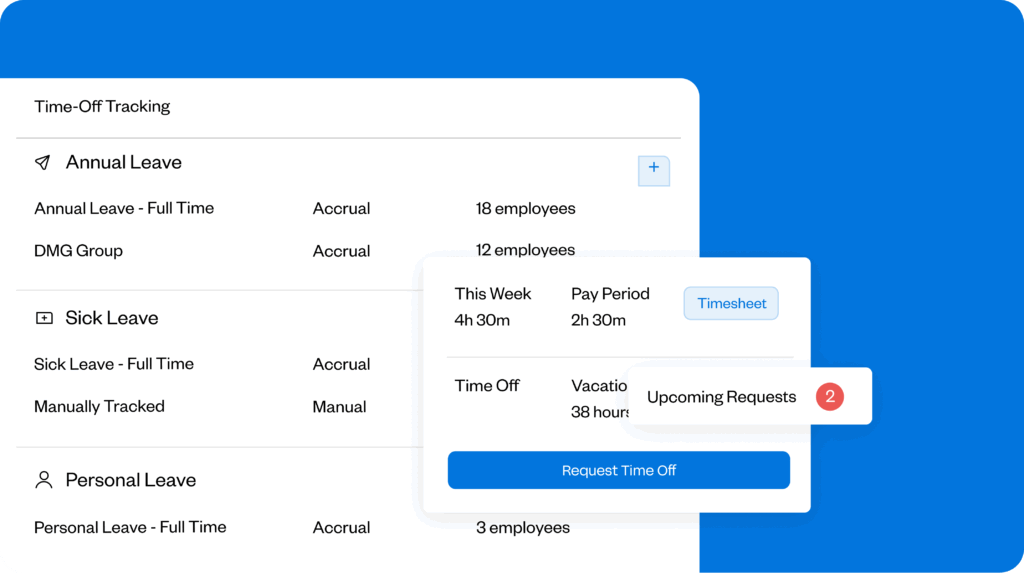
Set up your PTO accrual rules, and Buddy Punch will automatically calculate how much PTO each of your team members have earned. It handles multiple PTO accrual policies with ease, lets you set up accruals or add lump sums at specific intervals, and supports use-it-or-lose-it policies. Taken PTO is automatically deducted from employees’ PTO balances and added to their timesheets.
Buddy Punch also lets employees manage their time off benefits themselves. They can see how much PTO they have available in the app and submit requests for upcoming PTO. Those requests can be either auto-approved or sent to a manager or admin for approval, and you can even set up blackout dates for busy periods when you don’t want any employees taking time off.
Employee scheduling
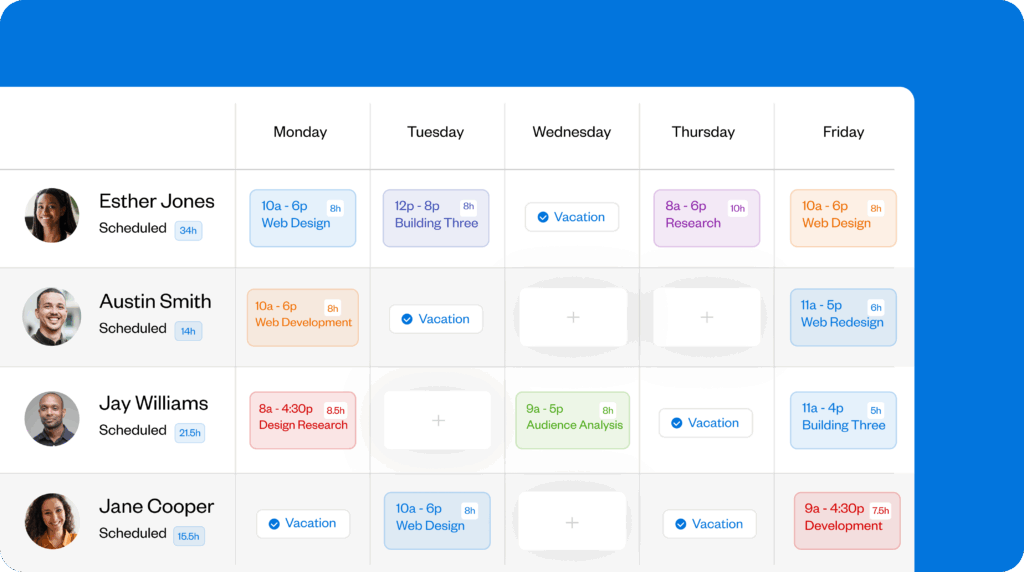
Quickly create schedules for your team with Buddy Punch’s drag-and-drop work schedule builder. You can set up recurring shifts, see employee availability and upcoming time off in the scheduling calendar, and schedule employees to work in specific roles or at specific locations.
Buddy Punch’s scheduling tool also has a self-serve interface. Employees can view their schedules in the app at any time, receive notifications when new schedules are published or changed, and submit trade or cover requests with coworkers when they can’t make a shift they’re scheduled for. If the coworker accepts the trade/cover request, it’s sent to a manager for approval, and the schedule updates automatically.
Payroll
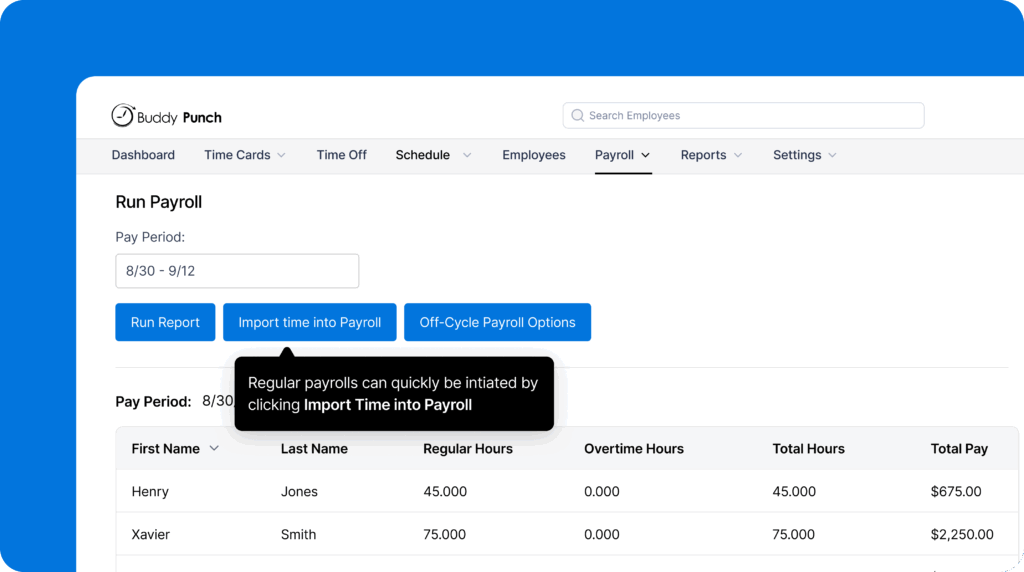
If you already have a payroll provider you want to keep using, Buddy Punch offers two ways to transfer your time data to that provider. You can download time tracking reports that are formatted perfectly for your payroll provider, or you can integrate Buddy Punch with your payroll software. It offers pre-built integrations with QuickBooks, ADP, Gusto, Paychex, PayPlus, Deltek, Rippling, and more.
If you don’t have an existing payroll processor or are looking to move away from both QuickBooks Time and QuickBooks Payroll, Buddy Punch is also an affordable choice. Its add-on payroll service handles all of the payroll needs for U.S. companies and has both a lower per-user cost and base fee than QuickBooks Payroll Elite.
When isn’t Buddy Punch a good fit?
Buddy Punch might not be the right alternative for your team if you need mileage tracking, project budgeting features, or the ability to attach project progress photos to timesheets. These features are not available in Buddy Punch but are included in some of the other QuickBooks Time alternatives below.
Pricing
Buddy Punch’s time tracking plan starts at $4.99/user per month plus a $19/month base fee (which covers the cost of all admin users) and includes time tracking, PTO tracking, job costing, time card approvals, break tracking, facial recognition, reports, GPS on punch, and all of its payroll integrations.
Plans that include scheduling, geofencing, and time clock kiosks start at $6.99/user/month, and real-time GPS tracking is available as an add-on to any plan for $2/user/month. If you want to use Buddy Punch for payroll, you can add that service as well for an additional $8/user per month plus a $49/month base fee.
Learn more about Buddy Punch
- Start a free trial — no credit card required
- View pricing
- Watch a video demo
- Take an interactive product tour
- Request a personalized demo
2. Timeero – Best for mileage tracking

Timeero is a GPS time clock app that’s built for companies with employees who work in the field, such as construction, field services, traveling salespeople, and home healthcare workers. It’s a great alternative if you are using QuickBooks Time for mileage tracking — it tracks the miles employees travel while working for simple reimbursements — and it also offers an integration with QuickBooks Online.
Location tracking features

Like QuickBooks Time, Timeero offers real-time GPS tracking, geofencing, and mileage tracking. It also has a segmented tracking feature that combines real-time GPS tracking and geofences to let you track time toward specific jobs without employees having to clock in and out. It uses real-time GPS data and your geofences to allocate time toward jobs automatically (after the first clock-in of the day).
Offline tracking

Timeero is one of only a handful of time clock apps that offers offline tracking, which is useful if your crew members often work at rural job sites. When employees lose their cell phone signals, Timeero backs up the data locally and syncs it when the signal returns. Employees can also override the requirement to be within a geofence when clocking in/out if their signal isn’t good enough for the app to identify their locations.
Electronic Visit Verification

Timeero also offers Electronic Visit Verification (EVV) for home healthcare teams. It uses facial recognition to validate the identities of your caregivers and real-time GPS to document the location where the care was received, and it lets your caregivers leave notes on the care that was provided during the visit.
When isn’t Timeero a good fit?
Timeero isn’t going to be the best fit for your team if you have more than 10 employees. While its Basic plan is more affordable than many of the other options on this list, it’s limited to 10 users. If you need to add more than 10 users, the price jump makes it more expensive than some of the alternatives that have identical feature sets.
Pricing

Timeero’s base plan starts at $44/user per year and includes time, GPS, break, and mileage tracking. However, this plan is limited to 10 users and doesn’t give you access to its QuickBooks integration.
For more than 10 users, you’ll need to upgrade to the Pro plan, which starts at $88/user per year and adds in features like job costing, geofencing, scheduling, payroll integrations, and photo attachments.
Timeero’s segmented tracking is available as an add-on to any plan for an additional $5/user per month. Its EVV feature also has a separate add-on cost, but pricing for that add-on is not publicly available.
3. Workyard – Best for project tracking

Workyard is a construction time card app built specifically for contractors and trades businesses. It integrates with QuickBooks Online and Desktop and comes with lots of features built for the unique aspects of running field crews, like project progress photos, equipment and mileage tracking, project cost reports, and additional integrations with popular construction software.
Project progress and cost tracking
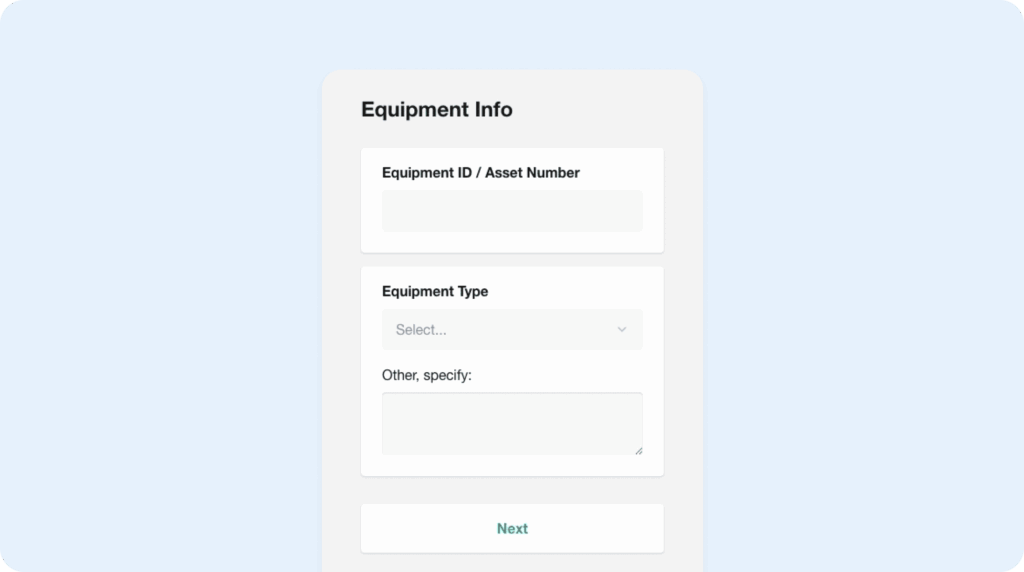
When employees clock out for the day using Workyard, they have the option to include project progress notes and photos. Those notes and photos can be easily accessed as reports in Workyard so the admins and project managers working in the office can keep track of progress without having to be in the field.
Workyard also supports expense tracking so employees can upload any expenses they incur along with photos of their receipts. Those expenses can be added to payroll for reimbursement and are included in project cost reports alongside your labor expenses.
Employee and equipment tracking

Workyard is very robust when it comes to its location-tracking features. Real-time GPS and mileage tracking features let you see all employees’ locations at any time on a map, view breadcrumb trails of their travel across the day, get a list of all of the worksites they visited, and detect travel time to calculate mileage. Geofences can also be set up to remind employees to switch job codes at different job sites.
Workyard also has a feature like Timeero’s segmented time tracking that automates job costing by clocking employees in and out as they arrive at and leave job sites over the course of the day. Finally, you can also keep track of your equipment usage by having employees log when they start and stop using equipment or check equipment out and back in.
Construction-specific integrations

In addition to offering integrations with QuickBooks Online, QuickBooks Desktop, and a variety of other payroll systems, Workyard also integrates with popular construction software platforms like Foundation Software, Sage 100 Contractor, Sage 300 CRE, and ComputerEase.
When isn’t Workyard a good fit?
Since Workyard is built specifically for construction companies and general contractors, it’s not a great fit for businesses in other industries. The cost of the app and the number of features included that won’t be useful to other industries will make it a poorer fit than some of the other options on this list.
Pricing

Workyard’s base plan starts at $6/user per month plus a $50/month base fee and includes time, GPS, expense, and mileage tracking as well as project progress notes and photos.
To get access to geofences, employee scheduling tools, job costing, and PTO management, you’ll need to be on the $13/user per month Pro plan.
To get access to automatic time tracking, you’ll need to be on the Enterprise plan. Pricing for the Enterprise plan is not publicly available and requires you to request a demo.
4. Hubstaff – Best for teams with both knowledge and field workers
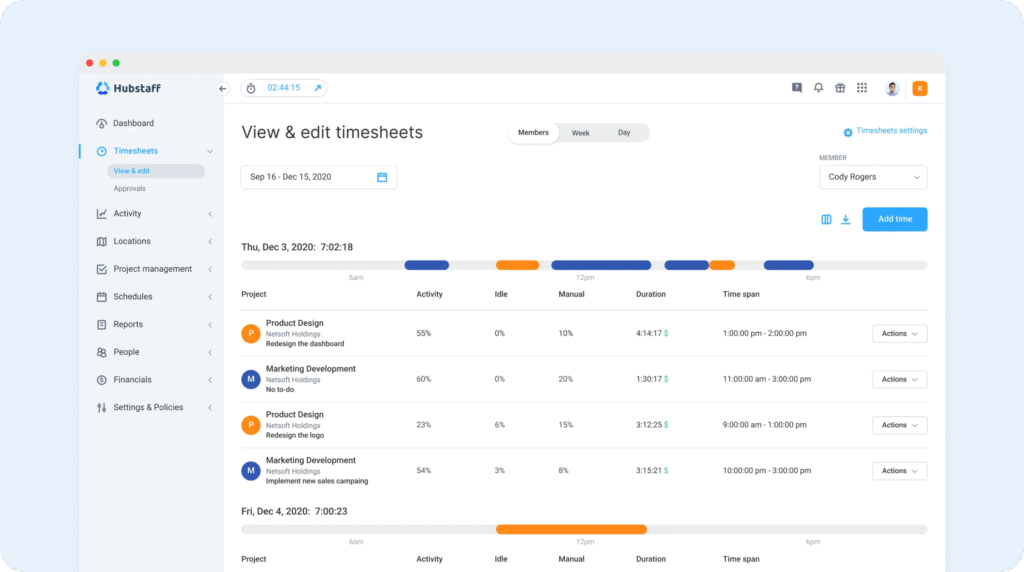
Hubstaff is unique because it caters to businesses with all different types of employees: field, in-person, and remote. You can use its time clock app to track employees’ locations while they’re in the field, and you can also use it to monitor what computer-based employees are doing throughout the day. This makes it a flexible option for preventing time theft of all types.
Employee monitoring
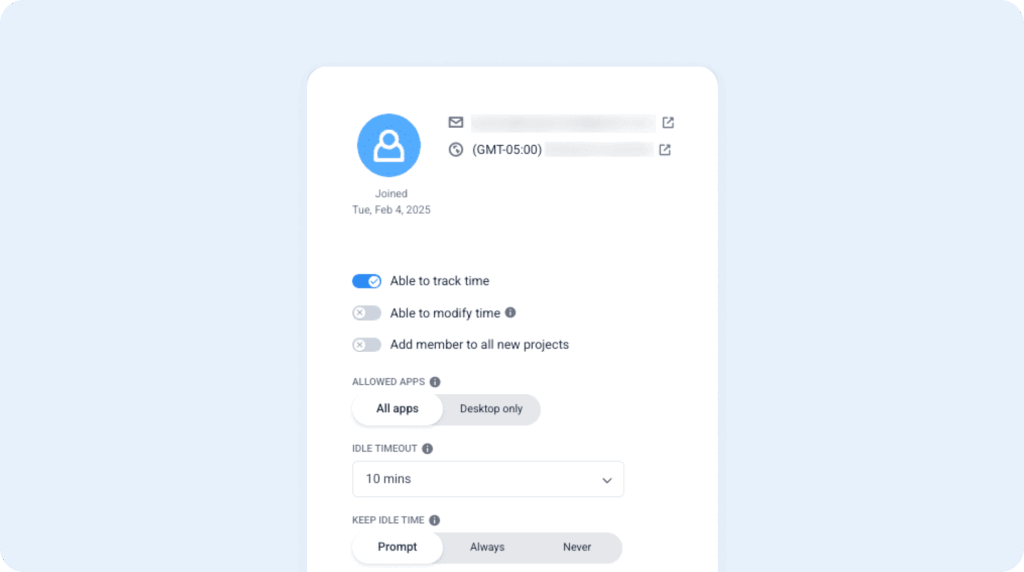
Hubstaff has a number of features for monitoring what computer-based workers are doing while they’re on the clock:
- App and URL tracking: See exactly what apps and websites your employees spent their time on to identify time spent on non-work activities.
- Automatic screenshots: Capture images of employees’ computer screens at regular intervals so you can see exactly what they were working on (or wasting time on).
- Idle detection: Track keystrokes and mouse movements to determine when employees are billing time to your business but aren’t actually doing any work.
Location tracking

Hubstaff also offers geofencing and GPS tracking for monitoring employees who are working in the field. Its real-time GPS tracking feature lets you view all employees’ locations on a map at any time and see breadcrumb trails showing where they traveled while on the clock. Its geofencing feature can be used to automatically clock employees in/out of different job codes or remind them to clock in/out.
Project management integrations

While many of the other apps we’ve looked at have offered payroll and industry-specific integrations, Hubstaff is unique in that it integrates with many of the systems knowledge workers use to do their jobs, such as Jira, Slack, Asana, Salesforce, Google Calendar, GitHub, Trello, Zendesk, and more. Additionally, it also integrates with both QuickBooks Online and Quickbooks Desktop.
When isn’t Hubstaff a good fit?
If you don’t need Hubstaff’s computer monitoring features and are just looking for basic employee time and location tracking, it’s not a great fit. It’s per-user cost for plans that include geofencing and GPS tracking is actually higher than QuickBooks Payroll’s Elite plan that includes QuickBooks Time, so it’s really only a good alternative if you need the time theft prevention features for your knowledge workers.
Pricing

Hubstaff’s base plan starts at $4.99/seat per month (with a minimum two-seat requirement) and includes time tracking, limited screenshots, and limited app and URL tracking.
To get access to its GPS tracking and geofencing features, you’ll need to be on the Team plan ($10/seat per month) and pay for the Locations add-on, which is an additional $3.33/seat per month.
Want to learn more? Read our in-depth Hubstaff review, discover the top Hubstaff alternatives, or compare Buddy Punch vs. Hubstaff.
5. FreshBooks – Best for replacing your entire QuickBooks suite

If you’re looking to move away from all QuickBooks products, FreshBooks is a great alternative. FreshBooks’ combined time tracking and accounting software lets you consolidate all of your finance operations into a single platform, and U.S. employers can also use it to run payroll through Gusto with FreshBooks’ optional payroll add-on.
Accounting software

FreshBooks’ accounting software is a complete alternative to QuickBooks Online. It gives you access to everything you need to manage your businesses’ finances: expense tracking, invoicing and payments, project estimating and proposals, bank reconciliation, and accounting reports. It’s also a more affordable option, with plans priced between $13 and $50 per month less than comparable QuickBooks plans.
Time tracking

The advantage of using FreshBooks for time tracking is that it doesn’t have per-user costs like the other tools on this list; instead, you get unlimited time tracking for your entire team in your base plan price. Its time tracking is built primarily for knowledge workers; it offers integrations with Chrome, Asana, Basecamp, Trello, and more to make sure your employees capture all of their billable hours.
Tracked time can be attached to specific client projects and tasks so you know exactly how much time to invoice for and can quickly identify if projects are on track or at risk of going over budget. And when it’s time to invoice, you can turn those hours into client invoices — along with any expenses logged for the project — and send them to clients with a feature that allows them to pay you directly from the invoice.
Payroll

FreshBooks offers a payroll add-on that lets U.S. employers pay their employees through Gusto, which can make it a good option if you’re looking to move away from QuickBooks Online, Time, and Payroll. However, if you already have a payroll provider you’re using that you like, FreshBooks also offers integrations with 10 platforms, such as Payment Evolution, PayEscape, and Wagepoint.
When isn’t FreshBooks a good fit?
FreshBooks isn’t a good alternative if you’re only looking for a time tracking tool. It’s primarily an accounting tool that has time tracking features, so you’ll want to need both types of software if you choose this platform. FreshBooks also isn’t a good choice if you need advanced time tracking features; its time clock offerings are very basic and only really support tracking time toward tasks and projects.
Pricing

FreshBooks’ plans that include time tracking start at $21/month for unlimited team members. Adding on FreshBooks Payroll costs an additional $6/user per month plus a $40/month base fee.
6. Paymo – Best for freelancers and professional services companies

Paymo is a great option for freelancers, consultants, agencies, and other professional services companies that need to track time toward client projects and send invoices. Its low-cost base plan for solopreneurs lets you track time and create invoices for up to three clients, and its team plans include time tracking, budgeting, and project management. On the team plan, you can also integrate with QuickBooks Online.
Time tracking

Paymo offers several different ways for knowledge workers to track their time. They can use Paymo’s browser extension to start and stop a timer when working on a task, log time using Paymo’s mobile apps, or enable automatic time tracking to see what they were doing at every point in the day and then drop those activities into project buckets. Time can also be entered manually at the end of the day or week.
Project tracking and invoicing

Setting up projects and tasks in Paymo lets you track time toward specific clients. Simply select the right client to track time toward, and Paymo will automatically tally up the total time spent. You can also track expenses you need to get reimbursed for, and when it’s time to invoice your clients, all of the time tracked and expenses incurred for those clients are added to an invoice that you can accept payments through.
Project management

The real highlight of Paymo is that you can use it to replace QuickBooks Time and your current project management software. In addition to time tracking, you can use Paymo as a complete project management suite. Add your client, projects, and tasks, then use to-do lists, Kanban boards, and Gantt charts to manage the projects overall. You’ll also be able to see things like your burn rate and milestones.
When isn’t Paymo a good fit?
Paymo isn’t a good fit if you have employees who work in the field. It’s designed primarily for knowledge workers who do the bulk of their work on computers, so it doesn’t offer the GPS tracking or geofencing features you had access to in QuickBooks Time.
Pricing

Paymo offers a very limited free plan that lets you track time toward one client and up to two projects. Its Solo plan ($5.90/user per month) is better for freelancers and consultants: on it, you can track time toward three clients and five projects and get access to the platform’s project management features.
Teams will want to subscribe to Paymo’s Pro plan, which starts at $10.90/user per month. This plan lets you add more than one user, track time and expenses for unlimited projects, integrate with QuickBooks Online and other platforms, and access timesheet reports.
7. Deputy – Best for retail, food service, and hospitality

Like QuickBooks Time, Deputy offers both scheduling and time tracking, but its scheduling features are much more robust. It’s designed for in-person customer-facing businesses like restaurants, hospitality, and retail shops where scheduling is complicated because of fluctuations in customer demand. It not only integrates with QuickBooks but also several point of sale platforms like Square, Clover, and Epos Now.
Employee scheduling

Deputy’s employee scheduling feature is extremely robust — the complete opposite of QuickBooks Time’s rudimentary scheduling tools. Deputy’s scheduling tools come with features like:
- Demand scheduling: Use historical data to make better predictions about how much staff you’ll need at different times of the day, days of the week, and times of the year.
- Smart scheduling: Add employee wage data and connect your sales data to create schedules that will result in the lowest labor costs for your business.
- Break and Fair Workweek compliance: These features help you keep records of your compliance with meal, break, and Fair Workweek regulations. You can document when an employee has waived a break, automatically add premium pay to timesheets for missed breaks, and warn managers when schedule changes could result in penalties.
- Automatic scheduling: Use your historical sales data and employee availability to have the system automatically create a draft schedule for you.
Time tracking

Deputy’s time tracking features are less robust than its scheduling system, but it has most of what you’ll need for in-person businesses. Employees can clock in and out at a time clock kiosk, and you can even turn your POS system into a time clock. Clock in and out data is automatically compiled into timesheets and can be sent to payroll via an integration with providers like Gusto, HiBob, OnPay, and QuickBooks.
When isn’t Deputy a good fit?
Deputy is a great option for companies where all employees work together in-person, but it’s not ideal for field, mobile, or traveling teams. While it does offer a basic geofencing feature that keeps employees from clocking in or out when offsite, it’s missing field-specific features like GPS and mileage tracking. And while it does have task management features to give employees to-do lists, it’s not really built for tracking time toward specific projects.
Pricing

Deputy’s base plan starts at $5/user per month and includes basic scheduling and time tracking features and its payroll integrations. For access to its POS integrations and auto-scheduling, you’ll need to be on the $6.50/user per month Core plan, and for custom reports, you’ll need to be on the $9/user per month Pro plan.
Want to learn more? Read our in-depth comparison of Buddy Punch vs. Deputy or discover the best Deputy alternatives.
Choosing the right QuickBooks Time alternative for your team
Migrating your team to a new time tracking platform is a lot of work, so it’s really important to make the right decision the first time. Here are some things we suggest doing to make sure that the replacement you choose will be the perfect fit for your team:
- Pay attention to pricing pages: Most apps have detailed feature breakdowns on their pricing pages that give you more information than any other page on their sites. Check out these breakdowns to make sure that the apps you’re considering have the features you need at the price you can afford to pay.
- Request demos and do free trials: Demos are helpful for getting answers to the questions you couldn’t find answers to on your own. And free trials tell the whole story about how easy or difficult an app will be to use and if it’s going to do what you need it to. Consider bringing in some employees to help you test it during the trial.
- Send an inquiry to customer support: When you need help, will your provider be there to support you? This is really important when you’re working on time-sensitive tasks like payroll. Send one or more questions to the support teams of the apps you’re considering to see if they’re going to be a good partner when you need help.
While replacing an app that’s not working for your team can be a lot of work, it can be well worth it in the end if you make the right choice on what to replace it with. So don’t rush the decision. Take your time, find the app that’s best for your team, and then enjoy the benefits of your careful decision-making for years to come.

