

BusyBusy Review: Pros, Cons, Features, Pricing, & More

Written By: Lucy C.
Last Updated May 4, 2026
Founded in 2010 by an experienced construction professional, BusyBusy is a time tracking and job costing app for construction and field-based workers, used by more than 75,000 contractors every day.
Consumers praise BusyBusy for its ease of use, accurate time and location tracking even in remote locations, and useful insights into project performance. But it’s not without its weaknesses. Some users flagged app glitches and noted that reporting options were limited.
To see how BusyBusy performs first-hand, I signed up for a free 14-day trial. Specifically, I tested its time tracking, project management, cost center and equipment costing, scheduling, PTO management, and reporting features. I also weighed up BusyBusy’s pricing structure against those of other leading time tracking apps.
Below, I share what impressed me the most about BusyBusy, and where it fell short.

Final verdict
BusyBusy offers reliable GPS tracking and time recording for construction and field-based employees working across multiple project sites. The app works well in offline mode, and it allows for detailed tracking against projects, cost codes, and equipment. However, its PTO and scheduling functions are basic compared to competitors, and it lacks useful features like tracking accruals and allowances.
Total Score: 3.86 / 5
(Read the full review below for more information on how each section was scored.)
| Comparison Features | 3.9 / 5 |
| → Time tracking | 4.5 / 5 |
| → Scheduling | 4 / 5 |
| → Attendance & labor costs | 4.5 / 5 |
| → Timesheets & payroll | 4 / 5 |
| → Paid time off & leave | 2.5 / 5 |
| Account Creation & Setup | 4 / 5 |
| User Interface & Ease of Use | 4 / 5 |
| Mobile App | 4 / 5 |
| Reporting | 3.5 / 5 |
| Help & Support | 4.5 / 5 |
| Pricing | 3.5 / 5 |
| Integrations | 4 / 5 |
| Security & Safety | 3 / 5 |
Pros and cons
| Pros | Cons |
| ✅ Easy to track project hours and costs against budget | ❌ Costly compared to alternatives with similar features |
| ✅ Strong geofencing and geolocation tools | ❌ PTO feature is limited (no balance or accruals) |
| ✅ Engaging manager dashboard | ❌ Basic scheduling with no shift preferences |
| ✅ Offline mode |
Account creation & setup
Setting up an account on BusyBusy was straightforward, though unlike some competitors, it didn’t let me authenticate via Apple or Google.
I created a manager account and multiple employee accounts so I could test the app from both perspectives.
I was guided through a clear, five-step sign-up process, where I had to add my email address, phone number, company name, number of employees, and industry. I was also asked to specify my preferred pay period: weekly, biweekly, or monthly. Note: The pay period can be changed later.
After I selected the features I needed and specified how I’d like to track employees’ time (mobile phone, supervisor tracking, or via a kiosk), BusyBusy activated a 14-day trial of its Premium plan.

At this point, I could choose a resource of my preference to help me get started. I loved that I had the option to schedule a one-on-one walkthrough with BusyBusy support, but opted for the Quick Start Video. This video highlighted the key features of BusyBusy, and I felt confident about setting up my business on the tool.

However, unlike ClockShark, BusyBusy didn’t provide a QR code for the iOS or Google mobile app during the sign-up process. The “Take me to the app” button actually directed me to the web app, so I had to search the mobile app store manually.
Adding employees was simple. I could add each employee manually or use the import feature to add users in bulk. I liked that, in addition to defining roles (e.g., employee, supervisor, admin), I could also create employee groups (e.g., laborers, bricklayers, plasterers).

One of BusyBusy’s standout features is the ability to track time against projects, cost codes, and equipment. This can give businesses valuable insights for future job costing.
I created several projects to track time, each with a unique geolocation and defined geofence. I also created some cost centers (tasks) and equipment. While it’s helpful to monitor time against tasks, adding equipment was time consuming, as I had to enter a substantial amount of detail.

BusyBusy allowed me to configure several features, including company settings, alerts, and notifications.
Score: 4 / 5
Overall, signing up and getting started on BusyBusy was intuitive, with multiple “getting started” options available for users. Some of the initial setup does take time. However, the effort felt justified, as the level of tailoring can provide valuable insights into project performance.
Time tracking
BusyBusy has a simple time tracker, accessible via web interface, mobile app, and on-site kiosk. The kiosk comes with photo authentication to prevent buddy punching.
Digital timesheets are created in real time, allowing managers to monitor their crew’s hours at a glance.
Time tracking for managers
BusyBusy offers strong geolocation and geofence tools, giving managers good oversight of remote and field-based teams.
Via the map feature, I could see the current location of all clocked-in employees. It was convenient to view who was working on each project, or even where a certain piece of equipment was being used. By clicking on each employee’s name, I could also trace their GPS movements throughout the day.

I could choose to let employees clock in only if they’re physically inside the geofence. Alternatively, I could let them log in outside it too, but choose to flag off-site clock-ins for supervisor review.
It was disappointing that BusyBusy doesn’t automatically clock employees out when they leave the geofence, like Buddy Punch does. It does, however, send a prompt to employees, reminding them to clock out. If an employee leaves a project site during their shift, this is flagged on timesheets, and managers can then review.
One feature I really liked was the (optional) compliance questions that managers can add to the clock-out process, asking employees to confirm if they suffered any injuries on the shift and if they took a break. This can help you stay compliant with health and safety laws.

Time tracking for employees
On both the web and mobile app, I was able to clock in with just a few taps.
If the relevant setting was chosen at setup, I had to select a specific project when tracking time. I could also select a cost center (task) and any equipment I was using.
I appreciated the option to add real-time photos to time entries. This can create a visual record of project progress for all employees. These can also be shared with clients as evidence of work completed.

During testing, the geolocation tools worked well. I couldn’t clock in outside the geofence. The prompt to clock out once I left the geofence can be useful if employees forget to punch out on busy days.
I intentionally stayed clocked in to see what happened if I forgot to clock out. However, unlike Buddy Punch and Homebase, it didn’t clock me out after a certain number of hours.
BusyBusy works on offline mode, so you can use it even in areas with poor network connectivity — a real plus point for mobile teams. To test this feature, I set my phone to airplane mode, and when it came back online, the data synced automatically.
Score: 4.5 / 5
BusyBusy’s easy-to-use time tracking tools provide accurate records, even in geographically remote locations. I wish it went just a little bit further and automatically clocked employees out when they leave the site.
Scheduling
BusyBusy has a simple drag-and-drop scheduling tool for creating, updating, and allocating shifts. It’s included on the Pro and Premium plans.
Scheduling for managers
Although there was no option to import existing shift data from a spreadsheet, creating new shifts was straightforward. I liked that I could create recurring shifts, repeating them weekly, monthly, even yearly.
In addition to assigning employees, I could allocate shifts based on projects, cost centers, and equipment. I appreciated that I could also add instructions, priorities, and client requests.
Making changes was as easy as clicking and dragging the shift to a new location on the calendar. If I wasn’t ready to publish right away, I could save my schedule as a draft and return to it later. Once changes are published, employees are instantly notified.
I could quickly identify shifts in the calendar view as they’re color coded.

I was pleased that unlike on Clockify, I could add new shifts on BusyBusy via the mobile app too. This offers much flexibility to supervisors and managers.
However, employees can’t set their availability or preferences like they can do in Buddy Punch, which could be a challenge when scheduling part-time workers or ad hoc support.
BusyBusy did block shifts from being assigned to employees who were already scheduled on another project. I could also stop BusyBusy from considering employees who had booked time off, which can prevent conflicts or no-shows.

Scheduling for employees
I allocated several shifts to myself and received instant notifications on my mobile phone. I liked that I could see at a glance where I’d be working, what I’d be doing, and even what equipment I’d be using. I could also view photos, documents, and reports for the allocated project, so employees would know exactly what to expect.

I could view my shifts on both the web interface and mobile app. While the web calendar view was much clearer, I loved that I could see a wider date range in the app — a plus compared to the restricted view on Clockify.
I could filter the date range to view shifts daily, weekly, monthly, or by pay period, helping me easily understand my allocated work and booked time off.
There are areas where BusyBusy’s scheduling could be improved. I couldn’t specify my availability like I can in Buddy Punch. I also couldn’t reject or swap shifts if something unexpectedly came up, so in case of last-minute callouts, managers would have to spend time looking for replacements.
Score: 4 / 5
For employees with predictable working patterns, BusyBusy’s scheduling is easy to use. But the lack of options to set availability or preferences could prove challenging for larger teams, as they’d have to rely on notes in other tools when scheduling part-time or flexible employees.
Attendance & labor costs
BusyBusy has several options to help managers monitor attendance and labor costs, including:
- Geofencing and geolocation
- Attendance dashboard with late and early clock-ins
- Time rounding
- Automatic and manual break tracking
- Overtime rules
While BusyBusy doesn’t automatically clock employees out if they’re outside the geofence, the prompts to clock out could help minimize time theft. I also really liked the attendance report, which provides an at-a-glance view of absent employees and late or early clock-ins.

For simplified and consistent timesheets, BusyBusy offers time rounding — rounding to the nearest interval between 5 and 30 minutes or in the “employee’s favor,” based on your selected option.

BusyBusy offers both manual and automatic break tracking, with a prebuilt option for California’s strict break rules. Helpfully for construction workers, a supervisor can also start breaks for the entire crew at once.
Apart from setting custom rates for each cost code, I could also define hourly rates and overtime rules for each employee.
While overtime hours were clearly visible on the dashboard and in timesheets, I wish there were real-time alerts for managers when someone enters overtime.
I liked that I could record a labor burden, including taxes, benefits, and uniforms. This helps price jobs accurately, reflecting the true cost of each employee.

Score: 4.5 / 5
BusyBusy has many useful features to help managers track labor costs, and I loved being able to set unique rates per task. While I could monitor tracked hours against budget, I’d love to see real-time alerts for overtime.
Timesheets & payroll
BusyBusy creates timecards in real time, allowing employees to view their current earnings at any point.
At the end of the pay period, employees are prompted to verify their timesheet with an e-signature, confirming that the hours are accurate.

As a manager, I could use the payroll tab to see a summary of hours per pay period, broken down into regular hours, overtime, double time, and paid time off.
Before running payroll, the payroll scanner function highlights any anomalies such as time entry conflicts, missed breaks, or missing signatures. I found it easy to update time entries when needed.
I’d have loved to see warnings for unusually long shifts. When I stayed clocked in for 23 hours, BusyBusy flagged missed breaks, but didn’t raise concerns about the shift duration.
Once you approve timesheets, BusyBusy’s payroll preview runs one final check, reducing the risk of errors. You can then export CSVs ready for payroll integration. I loved that you could also export detailed time entry information by project, cost code, and equipment.
Score: 4 / 5
Timecards are easy to review, edit, and approve. While some manual checks are needed, the payroll scanner helps managers resolve issues before payroll is run.
PTO & leave
BusyBusy features a basic PTO management tool that tracks and reports on employee time off, with a simple approval step to authorize requests.
PTO and leave management for managers
If the option is chosen during setup, BusyBusy allows employees to request time off directly via the app, with requests going instantly to a manager or supervisor.]

BusyBusy offers various types of leaves by default, including holiday, sick, and personal. I was also able to create custom leave types.

As a manager, I found it easy to process time off requests and could approve or deny time off in one tap. I liked the optional comments box when denying requests. I could also view employees’ previous and upcoming time off.
I do wish the time off section was more obvious in the menu.

While I liked that approved time off showed up in an employee’s schedule and on timesheets, I would’ve liked to see a visual snapshot during the approval step that allowed me to quickly check team coverage before approving a request. There was no mechanism to stop me from approving a leave request even if the employee was already scheduled for the same hours.

Unlike Buddy Punch, BusyBusy doesn’t let managers track accruals and allowances, which I found disappointing. I can’t apply leave policies or rules, so there’s nothing to limit the number of requested days, implement minimum notice requirements, or block requests during peak periods.
That said, BusyBusy’s PTO tools are functional and efficient for construction crews who may be managing leaves informally. Leaves are also automatically added to digital timesheets, without any additional setup.
PTO and leave management for employees
Sending a time off request was simple, though again, the PTO option in both the web interface and mobile app could be more obvious.
I could see a clear summary of upcoming, previous, and pending requests and received alerts when a request was approved or denied.
I was disappointed I couldn’t check my remaining balance for the year before submitting a request. However, I could helpfully request single or multiple days at a time. One thing I found unusual is that I had to specify whether the leave was paid or unpaid, which seemed like a decision more suitable for managers.

Score: 2.5 / 5
While simple to use, BusyBusy PTO management could go much further. It may not be useful enough for managers who want to monitor their team’s leave balances and accruals closely.
Reporting
BusyBusy offers standard reports to analyze time and attendance data, each with filters for project, cost code, and equipment:
- Activity reports to summarize labor hours and costs
- Time off reports to view time off and early or late clock-ins
- Verification reports, including photo verifications and discrepancies in time or location data
Still, this range is fairly limited compared to competitors like Timeero and Buddy Punch.
I could change the view of each report from compact to cozy, which could be useful with bigger teams, where reports can get crowded and harder to read. All reports can be exported as CSV files, but I wish I could email them or open directly in Excel.
I appreciated the customizable dashboard, which includes visual charts that highlight insights such as overtime hours and most active projects.
I particularly liked the Field Report (available only on the Premium plan). I could create daily field reports in just a few clicks to keep customers informed of project progress. These reports include total hours, photos, notes, and even weather conditions, which may explain delays or slower progress on certain days.

Score: 3.5 / 5
BusyBusy has a limited suite of reports. However, by appropriately filtering the data, I was able to get a good overview of my team’s work and project progress.
User interface & ease of use
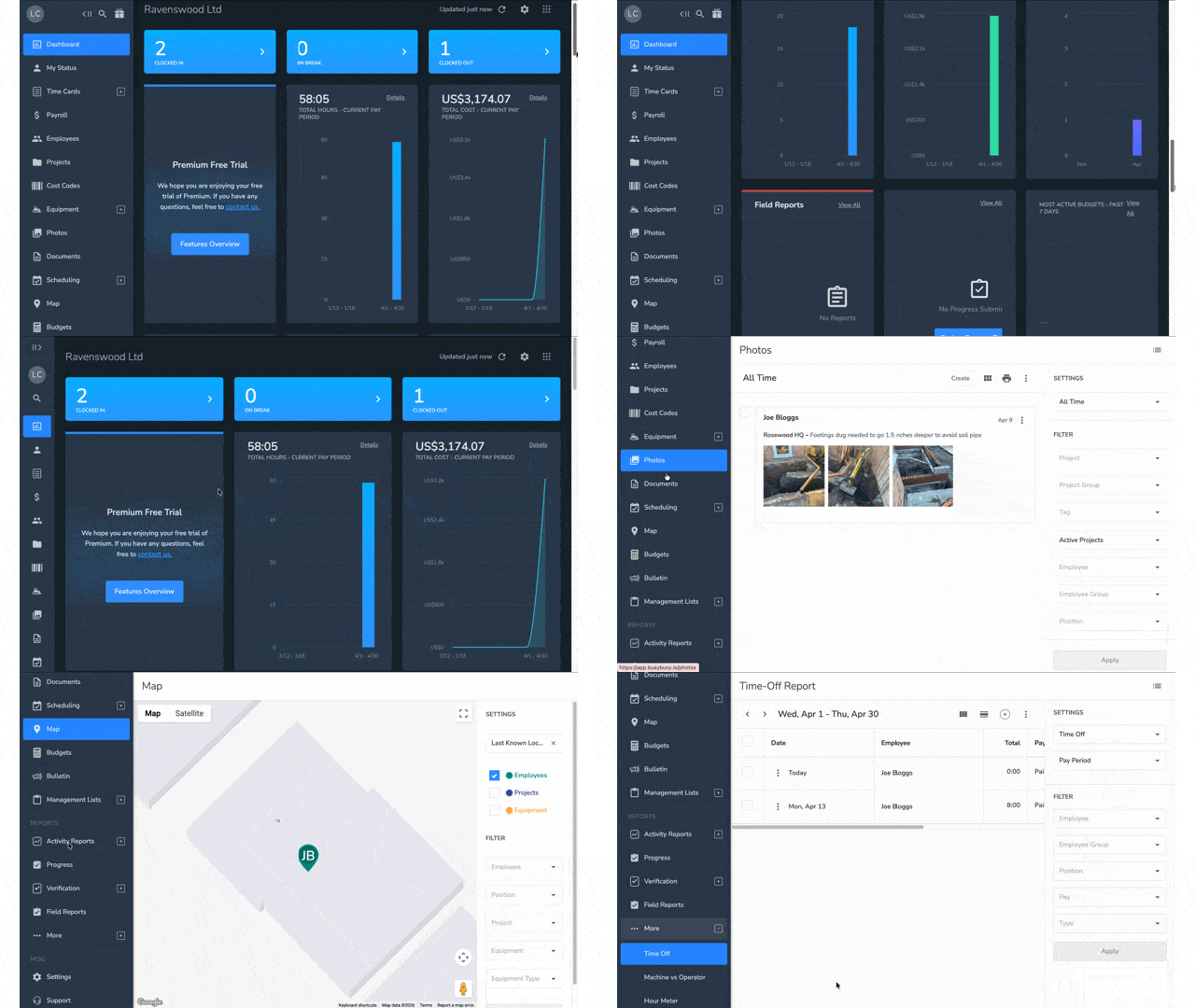
BusyBusy has a modern user interface, with a blue banner and white text on a black background. There are various options to customize your view.
Manager view
On login, BusyBusy takes managers straight to a dashboard with a range of metric cards and charts, which provide valuable insights at a glance.
The view is somewhat crowded, but I could select the information I wanted to see and in which order, or even hide cards that weren’t relevant.
The main menu was easy to navigate, with clear, intuitive titles. I could also reduce the menu size to have a bigger dashboard view.
My only quibble was that the Time Off card was hidden deep inside the menu, under “More.” I’d have loved the option to customize the main menu too.
Employee view
I found BusyBusy intuitive for employees, even for less tech-savvy users.
Like managers, employees also get a dashboard view, along with a “My status” page. Here, I could see my total hours today, for the week, and for the current pay period at a glance. I could also clock in or out, view my schedule, review photos and documents, and submit time off requests.

I appreciated the bulletin feature, which delivers real-time announcements and updates that may impact my day. This feature is available only on the Premium plan.
Score: 4 / 5
Overall, BusyBusy’s web interface is easy to navigate, but some menu items could be clearer.
Mobile app
Google Play Store Score: No ratings at the time of writing
Apple App Store Score: 4.1 (based on 911 ratings)
Manager view
With a layout broadly similar to the web interface, I found it easy to use the mobile app, with only a short learning curve when trying to search for specific data. I could easily view my own time clock, timecard, and schedule.
Through reports, I could review time cards, time off requests, and flagged issues for my team and track projects and costs. I could also use the supervisor tool to instantly clock my entire crew in or out.
Unlike many competitors, most BusyBusy features are accessible in the app, making it ideal for supervisors on the field. I did miss the visual dashboard I could access via the web browser, and found the wider view easier to build new schedules.

Employee view
As an employee, I found the app easy to use. I was able to clock in, upload photos, and add notes quickly. As long as my location settings were active, the app tracked my movements throughout the day, but crucially, it tracked movement only when I was clocked in. I didn’t experience any glitches while using the app and noted no significant impact on battery life.
Via the tabs at the bottom, I could view my time clock, time cards, and schedule. I could also access documents, photos, and notes via the side menu.
The option to make a time off request was hard to find, hidden within the Time Cards screen. This could certainly have been made clearer.

Score: 4 / 5
The BusyBusy app is user friendly, functional, and works offline. Managers can use most functions on site via their mobile, though I missed the full dashboard experience of the web interface.
Pricing
BusyBusy has a simple, transparent pricing structure with three levels: Free, Pro, and Premium.
The free plan for unlimited users is ideal for smaller businesses seeking simple time tracking. However, the use of photos, geofencing, and field reports is limited, which may leave them seeking an upgrade soon.
Just like ClockShark, the kicker is the high $40 base fee. If you need scheduling and robust PTO time off management, competitors like Buddy Punch and Connecteam offer better value for money.
| Free | Pro | Premium | |
| Price per month (paid monthly) | $0 | $11.99 per user + $40 admin license | $17.99 per user + $40 admin license |
| Price per month (paid annually) | $0 | $9.99 per user + $40 admin license | $14.99 per user + $40 admin license |
| Example: 25 users, monthly | $0 | $339.75 | $489.75 |
| Example: 25 users, annually | $0 | $289.75 | $414.75 |
| Example: 60 users, monthly | $0 | $759.40 | $1119.40 |
| Example: 60 users, annually | $0 | $639.40 | $939.40 |
| What’s included? | GPS time tracking Job costing Equipment tracking Unlimited users | Everything in Free, plus: GPS breadcrumbing Supervisor tools Daily sign-offs Photos and notes Scheduling | Everything in Pro, plus: Documents Daily project reports Progress tracking Checklists Team messaging Video and photo markups Zapier PPE scans` |
Score: 3.5 / 5
While the free plan works for small businesses seeking simple time tracking, you’ll need a paid plan to enjoy BusyBusy’s best features. The base fee makes it more expensive than some competitors, but advanced project costing could justify its price for construction or field-based businesses.
Help & Support
BusyBusy offers customer support via email, phone, and live chat. Do note that support isn’t available 24/7.
I reached out to live chat during the weekend. As this was outside of their working hours, I was referred to their AI agent Arlo. Compared to many apps I’ve tested, this agent was really helpful, providing detailed answers and clear signposting. As such, I found the information I needed without needing to email or call the team.

During my trial, the BusyBusy team also reached out, offering a 15–20 minute demo, so I felt well supported.
Score: 4.5 / 5
BusyBusy offers a range of support options for both beginners and experienced users. While support isn’t available 24/7, their AI agent is one of the best I’ve seen.
Integrations
BusyBusy integrates with a range of accounting, payroll, and construction industry tools, including:
- Paychex
- ADP
- ConstructionPayroll.com
- QuickBooks Online
- CompanyCam
- ProContractor
I love that you can use Zapier as well. This lets you sync data from BusyBusy to thousands of other apps, including Gmail, Google Sheets, and Slack.
Score: 4 / 5
For construction businesses, BusyBusy offers a range of useful integrations, but its payroll integrations feel narrower than those of competitors like Buddy Punch and Homebase.
Security
As mentioned above, BusyBusy has strong geolocation tracking. Combined with real-time photos and facial verification at kiosks, this offers good protection against time theft and buddy punching. My favorite feature was making projects mandatory when clocking in, which makes it harder for employees to sidestep geofence rules.
But I was disappointed that there was no two-factor authentication when I logged in to the web app either as an employee or a manager.
I liked that I could view a tailored breakdown of access and permissions for different roles (employee, supervisor, and manager) and customize them based on business needs.

While the BusyBusy website mentions that it encrypts personal data, I wasn’t able to find details of its security certifications. I also couldn’t determine if BusyBusy meets HIPAA requirements. This could be an important consideration if your company handles sensitive medical or health data.
Score: 3 / 5
While it has customizable access controls, BusyBusy could be more transparent about how it protects user data.
BusyBusy – Top three alternatives
1. Buddy Punch: Best overall BusyBusy alternative

The best alternative to BusyBusy is Buddy Punch. In addition to remote, mobile, and field-based employees, this easy-to-use time tracking app also supports salaried, hourly, and shift-based teams, including part-time and ad hoc workers. With real-time GPS tracking, Buddy Punch has strong geofencing tools to reduce time theft, automatically clocking employees out when they leave a project location.
Capterra Rating: 4.8/5 (1,115 reviews)
Starting at: $4.49 per user ($5.99 with scheduling)
Time tracking
Buddy Punch offers multiple time tracking methods, including via a web browser, mobile app, QR code, or kiosk. Like BusyBusy, using job-based time tracking, managers can easily track time and labor costs for specific departments, customers, and projects.
PTO management
PTO tracking is included on all of Buddy Punch’s plans. Unlike BusyBusy, you can build a range of PTO policies, including vacation, sick, and personal leave, with flexible accrual rules. Managers can quickly view pending and approved requests on the calendar. You can also prevent employees from requesting PTO if their PTO balances won’t cover the request and set blackout dates to prevent leave bookings during peak periods.
Scheduling
Buddy Punch has customizable drag-and-drop scheduling tools. With support for shift templates, recurring shifts, and instant notifications, schedules are easy to build and edit. And, unlike in BusyBusy, employees can set their availability and directly swap shifts with a colleague.
Attendance management
With location tracking, geofencing, facial recognition, and IP address locking, Buddy Punch provides real-time visibility into your workforce. You can receive helpful alerts to manage attendance issues such as late logins or no-shows.
And much more…
Buddy Punch also offers seamless payroll integrations (even on basic plans), customized project tracking, automatic break and overtime calculations, and much more.
Learn more about Buddy Punch
- Start a free trial — no credit card required
- View pricing
- Watch a video demo
- Take an interactive product tour
- Request a personalized demo
2. ConstructionClock: Best for automatic clock-in

ConstructionClock is designed for construction workers with fixed, predictable hours, providing accurate time tracking without any manual effort. The robust geofencing tools automatically track your team as they move between projects, while the SuperClock function can even create projects automatically.
While simple to use for employees, ConstructionClock falls short on scheduling and PTO management.
Capterra Rating: 5/5 (2 reviews)
Starting at: $12 per user, including scheduling
3. ClockShark: Best for managing construction projects

ClockShark has various tools to manage the progress and budgets of field service or construction projects. It’s simple to use for those seeking basic time tracking. However, its scheduling and PTO features still leave significant admin work for managers.
Capterra Rating: 4.7/5 (1910 reviews)
Starting at: $9 per user, including scheduling
Learn more about ClockShark
- Read our in-depth ClockShark review
- Compare Buddy Punch vs. ClockShark
- Discover the best ClockShark alternatives
Methodology – How I tested BusyBusy
As an experienced HR professional, I’ve worked with several time tracking tools, so I have a first-hand idea of what the most important features are for team managers. I’ve also tested a variety of time tracking apps in recent months, comparing their usability and key features.
To test BusyBusy, I signed up for a free 14-day trial, creating a fictional business, manager account, and several employee accounts.
Using real-world scenarios, I then tested various features related to time tracking, projects, task management, and timesheets. I accessed BusyBusy via both the web browser (MacBook) and mobile app (iOS).
I examined the help center in detail before reaching out to the live chat for support.
While testing, I took screenshots, noting where BusyBusy impressed and potential areas for improvement.
Finally, I reviewed the pricing model to understand which functionalities are included in each plan. I also checked its security credentials.
After reviewing each section, I assigned it a score out of 5. I then used each section’s score to calculate an overall weighted score out of 5.

