

Homebase Review: Pros, Cons, Features, and Pricing

Written By: Christian Rigg
Last Updated January 26, 2026
Homebase is a scheduling and time tracking app founded in San Francisco in 2014. In addition to scheduling and time tracking, Homebase has features for hiring and onboarding, human resources and compliance, and team communication.

Customer reviews of Homebase are largely positive, although there are definitely some snags, too. The app has a rating of 3.6 out of 5 on Trustpilot, and users generally appreciate the scheduling features and the mobile app. However, there are also reported issues with customer service, payroll, messaging, and even time tracking.
I wanted to check out these features for myself, so I spent several days testing Homebase from both a manager’s and an employee’s perspective. To do so, I looked at time tracking, scheduling, payroll, attendance, paid time off (PTO), and reporting, as well as the user interface and mobile app. I also compared Homebase’s pricing, integrations, and security to other providers to see how it stacks up.
Keep reading to find out where Homebase shines, where it falls short, and whether it’s right for your business.
Final verdict
Overall, Homebase is a capable, well-designed platform that covers the core aspects of scheduling, time tracking, payroll, and PTO for small and mid-sized teams. It shines in usability and mobile experience, but falls short on reporting depth, GPS flexibility, and integrations compared to some alternatives.
Total Score: 3.7/5
Read the full review below for more information on how each section was scored.
| Account Creation & Setup | 3.5 / 5 |
| Main Features | 3.6 / 5 |
| → Time Tracking | 3 / 5 |
| → Scheduling | 3 / 5 |
| → Payroll | 3 / 5 |
| → Attendance & Labor Savings | 4 / 5 |
| → Timesheets & Payroll | 4.5 / 5 |
| → Paid Time Off & Leave | 4 / 5 |
| User Interface & Ease of Use | 4.5 / 5 |
| Mobile App | 4 / 5 |
| Reporting | 2 / 5 |
| Help & Support | 4 / 5 |
| Pricing | 4 / 5 |
| Integrations | 2 / 5 |
| Security | 4 / 5 |
Pros and cons
| Pros | Cons |
|---|---|
| ✅ Simple, quick setup and a clean, modern interface | ❌ Weaker reporting, especially around time and attendance |
| ✅ Great mobile app experience on both iOS and Android | ❌ Limited GPS and geofencing functionality |
| ✅ Good scheduling features, with templates, conflict detection, and labor costs | ❌ Not as many payroll integrations as alternatives |
| ✅ Helpful, responsive support via chat | |
| ✅ Attractive pricing for single-location businesses |
Account creation and setup
Signing up for Homebase and getting started on the app was pretty painless. I was asked to fill in some details, such as my company name and what we do, how long we’ve been open, our current payroll solution, and any business locations.
In my case, I set up Homebase for a restaurant business with a single location that’s 1–3 years old, and I selected Scheduling, Time Tracking, and Payroll as features that interested me.

After that, Homebase offers the option to upload an existing schedule for a quick start. This seemed like a neat feature, and I was really excited to try it out. I used created a mock schedule with multiple locations, 40 staff members, and different shifts. It took Homebase about a minute to scan the screenshot, and while it added the people and dates, it missed all the shifts. Homebase also failed to add the roles.
From there, I skipped the quick payroll setup so I could see what it was like to do it manually, which I talk about later on.
Throughout the process, I found the Quick Start Guide homepage helpful. There are QR codes for setting up a tablet as a time clock kiosk, along with a handy checklist for getting everything else done.
Verdict: 3.5 / 5
Overall, setting up the product itself was fairly easy, but the scheduling mishap definitely cost Homebase some points.
Time tracking
I tested Homebase’s time tracking features as a manager and an employee and found them to be relatively solid. Broadly, time tracking works as you’d expect: Workers can punch in from their own mobile phone using the app or from a kiosk, which you can set up using a tablet or computer.
There are some clever additions that make a lot of sense for business owners, but there are also a few ways time tracking could be improved.
Let’s dive into the manager and employee experiences.
Time tracking with Homebase for managers
For managers, the Manager View under the Dashboard menu lets you see who’s clocked in and when they arrived, as well as who’s late for their shift.
You can also check the clock-in time to see whether someone clocked in early or late, but it would be nice to be able to view this at a glance with a tag, too. On the plus side, you do get notifications as a manager if somebody is running late for their shift, which I found helpful.

Additionally, Homebase supports geofencing — but you can only choose from three options for clocking in: within 150 feet, within one block, and within five blocks. A few other geofence time tracking apps I’ve tested, like Buddy Punch, let you set up geofences with custom boundaries and assign them to specific individuals or roles, which Homebase doesn’t allow.
You also can’t readily see who’s currently at a location (such as a store or job site) from the dashboard — or anywhere else I could find. Other apps like Buddy Punch show you the locations of all employees on a map at any time.
Beyond GPS, Homebase has some good anti-time-theft measures, including photos taken during punch-ins at a kiosk to prevent buddy punching. (Some apps take this further with facial recognition, which is harder to fool and saves time looking through photos.)
One minor issue I ran into happened when setting up my workstation as a kiosk. It worked well in testing, but when I clicked Access Dashboard to return to my manager view, I got a 404 error. The Back to Safety link got me there, but it was a bit disorienting.

Time tracking with Homebase for employees
I found the clock-in experience on the Homebase mobile app and the kiosk to be smooth. As you clock in, you can see information about your shift, including the role, date, and time, and on the mobile app, how much you’ll make. With geofencing on, you’ll see your location, and the mobile app, of course, blocks clock-ins if you’re too far away.
At first, I was able to punch in for a shift three days early without any warning, which surprised me. After some digging, I found the option to turn this off under Schedule Enforcement (and not Time Tracking). Here, managers can prevent early clock-ins (including during breaks), send clock-out reminders (cleverly, employees can enter the time they actually left), and automatically clock out employees after a specific time.
I was also able to clock out early with no warning, and there was no option to prevent this. That’s not all that unusual — people do finish shifts early. But a simple warning could help prevent mistakes. For example: “Your shift isn’t over yet. Did you mean to take a break instead?”
Lastly, I ran into one small bug when trying to hit Take Break: The app got stuck loading. I restarted the app, tried again, and it worked fine.
Verdict: 3 / 5
Overall, Homebase provides a serviceable time tracking system.
Its GPS functionality leaves something to be desired, though. If you want a little more control over location tracking, especially for field and on-site workers, you may want to check out our list of the best GPS time clock apps.
Additionally, a few well-placed warnings might help reduce small but annoying clocking errors.
Scheduling
The next feature I tested was scheduling, which I also tested from both the manager and employee perspective.
Homebase scheduling for managers
Despite the error when I uploaded my schedule during sign-up, it was fairly easy to create a schedule from scratch. Once you’ve done that, you can save any week as a template to make it easier next time. You can also copy and paste from one week to another.

Within the schedule, you can click a day to add a shift for a specific individual or an Open Shift that anyone with the right role can claim.
Plus, the New Shift window lets you select the start and end time, a role, add a color, and apply it to multiple days. (Unfortunately, you can’t click-and-drag across multiple days on the schedule to create multiple shifts.)
You can also add shift notes, which I thought was clever, though it’s available only on paid plans. And you have the option to drag and drop or copy and paste shifts between workers and days.

When creating a new role on the fly, I encountered a small bug: If you then select multiple days, the new role isn’t copied to all of them and has to be manually added to each one afterwards. It’s not a deal-breaker, but it could be a little smoother.
Fortunately, scheduling conflicts are easy to see, which is very helpful. I thought the Recommend Backfills feature was nice, too; I like that it shows the role, whether they have equal tenure, and warns me about overtime. I also really appreciated the Events feature, which enables users to add events (e.g., a staff party, wedding, or city event) to the schedule as reminders.
Publishing the schedule was easy as well. As a manager, you get a nice overview of total shifts, hours, and labor costs, and you can choose whom to notify (everyone, those with changes, or nobody).
That said, there were a few things I felt could be better:
- It would be nice to be able to create recurring shifts, such as a Morning Shift or Evening Shift, and select them from the dropdown. Other apps like Buddy Punch offer this feature. Choosing the start and end times each time got a bit tedious (though the copy-paste functionality helps).
- When applying a shift to multiple days, if you make a mistake and want to change it, you either have to update each day manually or update one, apply that new shift to the selected days, and delete the old ones.
- On a big schedule, it’s not super easy to see people who have been scheduled with no Role. Regrettably, it’s not one of the Filter options either.
- On the Day View, you can’t change the time of a shift by just dragging it to another time. Nor can you click and drag over hours to create a shift.
These are minor frustrations, though, and not unique to Homebase.
However, I encountered some more pressing issues while setting up my second schedule.
Sometimes, I would set the date and time, hit Save, and the shift failed to appear in the schedule. Other times, I would select multiple days, but only some would show up. This was easy enough to fix with copy-paste, but I could easily see it leading to some unfortunate scheduling mistakes.
Likewise, I tried copying from one week to another, and nothing happened. I tried it again, and still nothing. After refreshing my browser, I saw it had been copied twice.

If you’re looking for a more intuitive and user-friendly scheduling tool, check out our list of the best employee scheduling software.
Homebase scheduling for employees
As an employee using Homebase, you can access your schedule and see all the details you would expect: start and end times, role, open shifts, and holidays and events. You can switch between Day, Week, and Month views, too.

Employees can tap Request a Cover or Trade Shift with simple buttons, which I liked, but the interface doesn’t tell you until you click on an open shift if you have a conflict. It would be nice if it only showed you shifts you can actually apply for.
Also, once you claim a shift, it should change to Pending, so you know which ones you’ve already applied to. It tells you when you click on it, but that’s not very helpful if you’ve applied to multiple open shifts.
On a positive note, the breakdown of scheduled hours, estimated wages, actual hours, actual wages, and upcoming time off was nicely laid out.

Verdict: 3.5 / 5
Overall, I found Homebase’s scheduling in line with other products I’ve used, and it has some clever features that make scheduling easy. Managers will definitely find it better than working in a spreadsheet. Just be sure to double-check your work in case the interface misses or mixes up any shifts.
Attendance and labor savings
I had an interesting time evaluating Homebase’s attendance and labor savings features.
On the one hand, Homebase offers point-of-sale (POS) integrations, which I thought was really nice. This gives managers a clear view of sales against labor costs, and it’s visible throughout the app: in scheduling, time clock, and, of course, reports.
Key features were also present, as I hoped they’d be:
- Punch rounding
- Automatic breaks (which I found intuitive and powerful — you can create different breaks, turn extra paid break time into unpaid time, award paid hours for missed breaks, and more)
- Overtime alerts
- Punch limiting
- Automatic punch-out
- Punch rounding
The Manager view has helpful tags for Overtime and Time Over Scheduled Hours, which is nice, but there are no such tags for early clock-ins or late clock-outs. You do get notifications for them, but otherwise, you have to go to Timesheets or Reports to see these, which felt inconsistent. Several Homebase alternatives, like Buddy Punch, display tags on your dashboard view showing you immediately if employees are running late.
You also can’t see people’s locations throughout the day — only at the time they punch in — which is a shortcoming for crews that move around, like field and on-site workers.
Find a better choice for tracking time for mobile employees in our list of the best field services time tracking software.
A plus here is that Homebase lets you see who hasn’t arrived for their scheduled shift (through the No Show tag).

Verdict: 4 / 5
Homebase has all the basic attendance and labor-saving features you’d expect. There are just one or two areas I felt information could be easier to see — and the GPS tracking, once again, lets Homebase down compared to others.
Timesheets and payroll
For timesheets and payroll features, I tested from both the manager and employee perspectives.
Homebase timesheets and payroll for managers
There were no big surprises here, good or bad. Managers can view timesheets by day or by custom pay period and easily add time entries for employees.
A few minor changes could make it more intuitive, though. For example, if you accidentally set an End Time before a Start Time, or a break before or after a shift, there’s no warning until you click Save. Some warning text as you set the times would save a few seconds each time.
I found that there’s good visibility for No Shows, and you have a convenient dropdown to resolve issues with “Add reason for no show,” “Add time as scheduled,” and “Add new times.” The “Add time as scheduled” is particularly clever, in my opinion.
Similarly, the filters are quite handy for finding employees and roles, and for seeing issues such as missing breaks, missing clock-outs, and no-shows. The Pay Period Review screen also highlights these issues and makes them easy to fix.
In addition, you get all the information you’d expect from a timesheet:
- Issues
- Scheduled Hours
- Actual Hours
- Actual vs. Scheduled
- Total Paid Hours
- Regular Hours
- Unpaid Breaks
- Overtime Hours
- More technical details, including Spread of Hours, Split Shifts, Estimated Wages, and Blue Law Hours
- Benefits details, including Paid Sick Time, Holiday Pay, and PTO

As for payroll, you can automatically sync to Gusto, ADP Run, Square, and QuickBooks Online Plus. Or you can export reports automatically formatted for a variety of providers, including Bank of America, Paychex, and Heartland.
Overall, however, Homebase’s payroll integrations leave a little to be desired, with other time tracking apps, like Buddy Punch, offering far more payroll integrations for syncing your timesheet data.
Homebase timesheets for employees
Employees can view their timesheets in the desktop app or through the Money feature of the Homebase mobile app. Workers’ timesheets include scheduled and worked hours, regular, break, and overtime hours, and estimated wages.
If, as a manager, you’ve turned on tip pooling in the app, workers can also declare their tips (which you can make mandatory) and see their portion.
Employees can download timesheets as PDFs, but not as CSV, Excel, or Google Sheets files. Most won’t mind this, but some may find it frustrating.
Verdict: 4.5 / 5
Everything is as you would expect, and the payroll integration is good. The automatically formatted exports for other providers are a nice touch, and I awarded extra points for them.
Paid time off and leave
For Homebase’s PTO and leave features, I again tested them from both the manager and employee perspectives.
Homebase PTO and leave for managers
PTO and leave are well-supported in Homebase. Setting up a new policy was straightforward, and you can choose between a set amount per year and an hourly rate. Set amounts can be earned at the start of the year or on a hire anniversary or as a portion each pay period, while hourly PTO is earned per a set number of hours worked (e.g., one hour earned per 20 hours worked).
You can also set a maximum balance, maximum accrual per year, and maximum use per year, as well as turn on and off negative balances, define carryover limits and waiting periods, and set tenure policies (e.g., 1.5 hours/20 hours after one year, two hours/20 hours after three years, etc.)
It’s handy that Homebase lets you assign policies to all staff or to specific individuals. But it’s slightly frustrating that there’s no way to set policies by role, location, department, or any other type of grouping. When assigning policies, though, you can add an existing balance, which is a nice touch for companies moving to Homebase.

The Time Off screen makes it easy to view and approve or deny requests. I liked that when you click a request, it shows the post-balance amount, and if it’s negative, it highlights it in red. In a future version, it might be nice to see this on the main screen as well.
However, unlike other apps I’ve tested, you can’t leave a note for the employee directly in the approval or rejection box. It’s not a must-have feature, but it’s certainly convenient and helps you avoid writing a separate email or forgetting to respond, especially when denying requests.
On the flip side, I appreciated that you can set a minimum number of days’ notice employees must provide when requesting time off (e.g., at least five days).
Homebase PTO and leave for employees
As an employee, you can see your remaining paid time off and request new time off from the home screen. The Homebase app did allow me to request more time off than I had accrued without any warning. Of course, a manager still has to approve it, but it would be nice to see red text that says something like, “Your requested time off exceeds your accrued hours.”
The Upcoming Time Off screen shows all the information you’d expect: dates, reason, time of request, and whether the request is Rejected, Pending, or Approved.

Verdict: 4 / 5
Everything you need is here, and there are many ways to customize PTO and leave for your business. A few additional features would help round this out to a perfect score in the future.
Reporting
Homebase offers basic reporting for:
- Scheduled vs. Actual Hours
- Scheduled vs. Actual Clock-Ins
- On-Time Arrival
- Shift Feedback
- Hourly Labor Costs
- Labor By Role
- Labor Cost Summary
- Sales Summary
- Departments
- Certificates
There’s also an Overview section that combines these reports.
You can export reports as a CSV, which is good since the in-app filtering is fairly limited. For example, you can’t filter most reports by role, location, or project.
Even so, there are several other reports I would have liked to see, such as PTO summaries, deleted or edited time cards, absence reporting, and time clock errors, which I’ve come across in other apps.
Verdict: 2 / 5
The POS integration is a nice touch, but it’s not enough to save the overall score. The existing reports are basic in functionality, and I would have liked to see others.
Other Homebase features
Homebase provides a handful of additional features that I explored during testing. Here’s what they are and how I felt about them:
- Roster: See your entire team and add key details, including job and personal information, HR documents, and performance information.
- Employee Documents: You can add W-4, I-9, and W-9 Forms, as well as a Payment Method Form.
- Messaging: This feature feels a bit like an afterthought. Still, you can choose from three pre-made channels, send messages by roles, or send DMs.
- Background Checks: Homebase partnered with Mitratech to offer background checks for $30 each. It’s somewhat convenient, but there are cheaper options out there.
- Benefits: Homebase teamed with SimplyInsured and Accrue to offer health insurance and retirement options, respectively.
- Hiring: You can use artificial intelligence (AI) to create a job ad, then post it to Craigslist, ZipRecruiter, Indeed, Facebook Jobs, and Google, plus invite users with a QR code. Homebase’s Hiring Assistant AI then evaluates answers to screening questions and makes recommendations on whom to hire. It costs $30 per month for one job ad or $199 per month for unlimited ads.
- Task Management: For $13 per location per month, you can add support for task management, including repeatable checklists and mobile-only tasks. Tasks can be assigned to workers, who see them on the mobile app before and during their shift.
User interface and ease of use
Overall, I found Homebase’s interface to be modern and straightforward. There’s a menu on the left, and each item expands to show a submenu when you access that feature. Everything fits well on the screen (with one exception, noted below), and nothing feels cluttered, out of place, or confusing.
As a manager, you start with the Dashboard view, which gives you an overview of the current day. On the left, you’ll find the menu with Schedule, Timesheets, Team, Productivity, and other main sections, as well as Settings and Help. At the top, you have icons that provide access to the time clock/kiosk function, team messaging, notifications, company locations and settings, and your own profile.

The app itself feels responsive, and aside from a few bugs noted in this review, there were no particularly long loading or wait times.
As mentioned in previous sections, notably Timesheets and Payroll, there were a few instances when I wished for easier access to information without having to dig.
Likewise, I didn’t find all the Settings sections entirely intuitive. Many of the Time Tracking options are actually under Schedule Enforcement. Admittedly, that may just be a matter of personal preference, and either way, it’s not a steep learning curve.

In a few cases, dropdown menus had words cut off in my browser (Firefox running on MacBook Pro, 14”, MacOS Tahoe). So “Days” became “D…” and “Years” became “Y…” You could believe that was intentional, except that “2026” is “2…”, which suggests to me it’s a user interface error. It’s a minor detail, but it means you have to click dropdowns to actually see what you’re looking at.
Nonetheless, Homebase obviously put a lot of time, effort, and thought into the layout, and it shows. Contextual menus and buttons include lots of useful actions when you need them, like the Resolve menu for (purported) late clock-ins.

The employee experience in the web app feels a little more dated, but not dramatically so. Everything is laid out well and where you would expect it. Nothing was particularly difficult to find, and there were lots of helpful contextual buttons, such as Request a Cover and Trade Shift on My Schedule.
Verdict: 4.5 / 5
I docked half a point for a few issues, but otherwise, Homebase has a very clean, modern, and stylish interface.
Homebase’s mobile app
Managers and employees both rate the Homebase app highly on iOS and Android, and it’s easy to see why. Both experiences are intuitive, quick, and polished. The app is modern, clean, and simple to navigate.
Let’s take a closer look.
Manager experience
Like the desktop app, the mobile app start screen is geared toward POS sales and labor costs. (If you already use other software solutions to manage that, this won’t be as useful to you.) The Dashboard tab shows your screen as an employee with your own clock-in and upcoming shifts.

The Schedule tab lets you view and build schedules, and it’s essentially the same as on the desktop, except that you can’t drag and drop shifts.
You can see timecards and timesheets, filter by workers and roles, view and resolve issues, and review the pay period. The Pay period review, though, isn’t nearly as useful as on the desktop: You can’t filter — not even for workers with hours — and there’s not much information available at a glance.

Messages has the same functionalities and limitations (no custom group chats) as on desktop.
I did, however, like that in More, you can view your own earnings, see and respond to time-off, trade, cover, and availability requests, view your team, read the manager log, and adjust your own settings.
Perhaps most regrettably, you can’t access reports in the mobile app, which seems like a big oversight.
Employee experience
As an employee, you can view your next shift, earnings for the pay period, and upcoming shifts on the main screen. You can also launch the time clock feature.
The schedule view is decent, but there’s no monthly view on the app, so it’s harder to see at a glance when you’re working. There is a Calendar Sync in Settings, so you can view your shifts in your regular calendar app. Tapping a shift gives you more details, including estimated earnings and who you’ll work with. You can also ask for a cover and send a group message to your coworkers for the day, which is a clever addition.
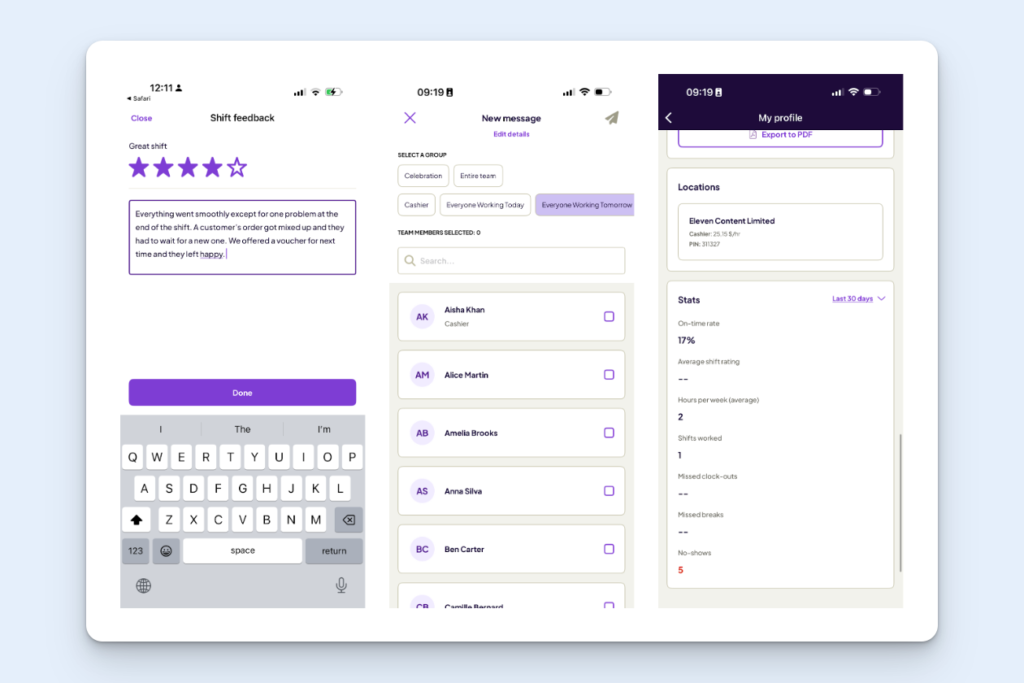
The Money tab somewhat replaces timesheets, but it’s a little odd that the apps aren’t more synced up from that perspective. Still, you can view earnings in detail, notifications like Missed Clock-in, and your scheduled versus actual hours. In the Money tab, you also get access to Cash Out, a Homebase service that allows employees to receive an advance of up to $100.
In More, you can request time off, send and view trade and cover requests, and update your availability. The Profile view shows stats like on-time rate, average shift rating, missed clock-outs, missed breaks, and no-shows. These are all factors that can impact pay, bonuses, and career advancement within a company, and they’re worth keeping track of. It’s just unfortunate these aren’t available in the desktop view for employees.
Verdict: 4 / 5
Homebase offers a solid mobile app experience for managers and employees. I took a point off for the lack of reporting for managers, which other platforms offer as standard, and very basic timesheet management compared to the main Homebase app.
Help and support
Homebase offers live support from 7:00 a.m. to 7:00 p.m., Monday through Sunday (excluding holidays).
You can contact support once you open an account by clicking on the purple Chat icon in the bottom-right corner of the screen.
All conversations start with Homebase’s AI chat, but once the AI realized it couldn’t answer my question, it was quick to direct me to a human I could speak to.
I asked the support agent a few questions about the app related to some of the issues I encountered during testing. They were quick, courteous, and generally knowledgeable about the product and its limitations. They also suggested workarounds for my problems, which were very helpful.
My only minor qualm is that, after ending the chat, there was no way I could go back and refer to it. Once you refresh your screen, it disappears from the chat app. I checked my email, too, and couldn’t find a transcript. Your only option is to print a transcript during the conversation; you can’t do it later. If you forget the answers to your questions, you’ll have to start over.
Nonetheless, the support was very positive.
Homebase also offers a Help menu that takes you to a knowledge base with plenty of articles and videos for self-service support on common topics, such as scheduling, time tracking, time sheets, payroll, and more.

Verdict: 4.5 / 5
Homebase loses half a point since it doesn’t offer chat history or an emailed transcript of support conversations. Other than that, I found that Homebase offers a very positive support experience.
Pricing
Homebase has four pricing tiers, including the free Basic tier for teams of up to 10. You pay per location with Homebase, regardless of the number of employees.
For companies with just one or two locations, the pricing is fairly attractive. However, for companies with lots of locations, platforms with user-based pricing, like Buddy Punch, may be more affordable. Additionally, adding features like payroll, tip manager, and task manager can quickly increase your costs.
Here’s how it breaks down:
| Plan | Basic | Essentials | Plus | All-in-One |
|---|---|---|---|---|
| Cost per Month (Monthly) | $0 For 1 location and 10 employees | $30/location Unlimited employees | $70/location Unlimited employees | $120/location Unlimited employees |
| Cost per Month (Annual) | $0 | $24/location | $56/location | $96/location |
| Scheduling | Basic | Advanced | AI-powered | AI-powered |
| Time Tracking | Basic | Advanced | Advanced | Advanced |
| POS Integration | ✅ | ✅ | ✅ | ✅ |
| Team Chat | ❌ | ✅ | ✅ | ✅ |
| PTO & Time-Off Controls | ❌ | ❌ | ✅ | ✅ |
| Departments & Permissions | ❌ | ❌ | ✅ | ✅ |
| Employee Onboarding | ❌ | ❌ | ❌ | ✅ |
| Labor Cost Management | ❌ | ❌ | ❌ | ✅ |
| HR & Compliance | ❌ | ❌ | ❌ | ✅ |
In addition to the main plans, Homebase also offers a number of add-ons with additional costs:
| Payroll | $39/month + $6/employee/month | |||
| Tip Manager | $25/location/month | |||
| Background Checks | $30/check | |||
| Task Manager | $13/location/month | |||
| Job Post Boosts | $79/post | |||
| Hiring Assistant | $30/post | |||
The tiers differ significantly in functionality. For example, some features I consider very important, such as tracking team attendance and sending late alerts, are only available on the Plus plan. Business Insights, which offers many of the interesting Sales vs. Labor features I mentioned throughout this review, are only available from the All-in-One plan. You pay extra for Payroll, but that’s pretty standard for time tracking software, so no points off there.
Overall, I found Homebase’s pricing pretty fair, but your view of its affordability and value will depend on how your business operates. A big company with a single location that houses many employees may find Homebase more cost-effective than a company with several locations or job sites.
Verdict: 4 / 5
The pricing feels mostly fair, but some potentially important features are only on the Plus plan or higher. Also, multi-location businesses may end up paying a lot for Homebase given the platform’s pricing model.
Integrations
Homebase offers four types of integrations: payroll, POS, operations, and job boards.
For payroll, Homebase syncs directly with QuickBooks Online Plus, Square, ADP Run, and Gusto. It offers formatted timesheets for nine others, including Bank of America, SurePayroll, Paycheck, Heartland, and Wells Fargo.
If your payment provider isn’t on this list, you may want to check out a Homebase alternative. For example, Buddy Punch ($4.99 per month per user) covers most of Homebase’s integrations — and adds Dealtek, Deluxe, iSolved, Justworks, Paylocity, Payevo, Pay Plus, Rippling, Workday, and many others.
For POS, integrations are available for Square, Clover, Toast, Shopify, Payanywhere, GoDaddy, Talech, Lightspeed, and Revel. You can also integrate Homebase with Restaurant365 and Tiphaus for operations, and Indeed, Google, ZipRecruiter, Craigslist, and Glassdoor for job boards.
Verdict: 2 / 5
I was a little disappointed by how few direct payroll integrations Homebase offers. There is an API to build integrations, but it’s only available on the All-in-One plan and only provides read access. Plus, Homebase explicitly advises against using the API to integrate with other systems unless they offer custom integration via API.
Security
I’ll spare you the very technical details, which you can review in detail on Homebase’s Trust Center. Suffice to say, Homebase is a secure service provider that meets a number of essential compliance requirements, including PCI DSS, Pentest, NIST CSF (independently tested), HECVAT Lite, CAIQ, CAIQ Lite (self-assessed), CCPA, NSIT, CSF, PIPEDA, SOC 2 Type 2, and SOC 3.
Logins are secured with two-factor authentication, single sign-on (SSO), and passwordless login. Data is encrypted at rest (AES-256) and in transit (TLS) — the same security used by banks and other time tracking and scheduling platforms.
From a company perspective, there are also security measures to protect against time theft, as I mentioned above. This includes photos on clock-in and geofencing, though both are somewhat limited (no facial recognition, and no custom geofences). Homebase offers role-based access control, too, but only for Plus users.
Nonetheless, from a software perspective, Homebase is secure, undergoes regular internal and external security checks, and has obviously put a good deal of thought into security. I wouldn’t expect anything less from a platform that works with data from companies and their personnel, so it’s good to see there are no glaring issues.
Verdict: 4.5 / 5
Security against time theft could be stronger, for instance, with facial recognition or QR-code punching, so I’ve knocked half a point off the score.
Methodology: How I tested Homebase
I entered the testing experience with expertise in managing single- and multi-location teams (including restaurant, café, and hotel staff, as well as distributed teams), so I knew which features would be important to managers and their team members.
To begin, I signed up for two Homebase accounts: one as a manager and company owner, and one as an employee. This allowed me to test the app from all angles. I worked my way through time tracking, scheduling, attendance and labor, timesheets and payroll, PTO and leave, reporting, and finished by looking at some of Homebase’s other features. For each feature, I took notes and screenshots as I tested, ensuring a fair and honest assessment of my experience and balancing positives and negatives throughout.
A good mobile experience is essential to smooth operations with deskless teams, so I wanted to give that experience special attention. I downloaded the app and tested it with both my manager and worker accounts, exploring features and settings to see how intuitive it felt.
To test the Help and Support, I sent a message to the Homebase team from the app, and then led the customer service agent through a series of questions about the product and managing a team, to see how quickly and well they would respond.
Finally, I looked through the pricing, integration, and security, and did my best to evaluate those fairly based on my own experience using similar software and my knowledge of security protocols and integrations.

