

Timeero Review 2026: Pros, Cons, Features, Pricing, & More
Decide whether Timeero is the right time tracking app for your business with this in-depth review of all of its features, written by an HR expert.

Written By: Lucy C.
Last Updated March 30, 2026

Founded in Arizona in 2019, Timeero is a GPS-based time tracking tool that supports remote, mobile, and field-based employees across multiple industries. With core features for monitoring time and mileage costs by job and project, Timeero also offers easy-to-use scheduling tools, time-off management, one-way messaging, and reporting.

Customers praise Timeero for its ease of use and responsive customer support. However, some G2 reviewers report glitches and being logged out while using the app. There’s also no free plan with Timeero, and some features are only available on Pro plans or above, so it could prove costly for small businesses.
To see Timeero’s features in action, I signed up for a free 14-day trial and reviewed the software from both a manager’s and an employee’s perspective.
I tested key functions across the web interface and iOS app, including time tracking, scheduling, attendance, paid time off (PTO) monitoring, and reporting. I also scrutinized Timeero’s integrations, pricing plans, and security features before comparing it with other time tracking tools I’ve tested.
To learn if it’s the right choice for your business, read on for my full Timeero review.
Final verdict
Timeero is an easy-to-use time tracking tool with robust geolocation capabilities. It shines at generating accurate mileage records for field-based teams. Its PTO functionality falls a little short, however, and the shift-based timesheets may feel admin-heavy for businesses that don’t need detailed mileage insights.
Total score: 3.79 / 5
(Read the full review below for more information on how each section was scored.)
| Account creation and setup | 4.5 / 5 |
| Comparison features | 3.7 / 5 |
| → Time and mileage tracking | 4.5 / 5 |
| → Scheduling | 4 / 5 |
| → Attendance and labor cost management | 4 / 5 |
| → Timesheets and payroll | 3 / 5 |
| → PTO and leave | 3 / 5 |
| User interface and ease of use | 3.5 / 5 |
| Mobile app | 3.5 / 5 |
| Reporting | 4 / 5 |
| Help and support | 3.5 / 5 |
| Pricing | 4 / 5 |
| Integrations | 4 / 5 |
| Security | 4.5 / 5 |
Pros and cons
| Pros | Cons |
| ✅ Strong geolocation and geofencing tools | ❌ No free plan |
| ✅ Useful offline mode | ❌ Scheduling and PTO management only available on the higher-priced plans |
| ✅ Excellent mileage tracking | ❌ App is not visually pleasing |
| ✅ Intuitive and easy to use | ❌ Granular, shift-based timesheets may be too admin-heavy for some |
Account creation and setup
Creating an account with Timeero was straightforward, and no credit card was required for the free trial.
I was able to register with an email and password. I was asked some basic questions about my organization, including the company name, industry, and the number of employees. To support my review, I created a fictional small business with 11–25 employees.
Once I’d signed up, I was greeted with a welcome video covering Timeero’s key features before landing on a simple, uncluttered interface featuring Timeero’s friendly dog mascot.

While it doesn’t have a full getting-started wizard, Timeero uses a visual toolbar to highlight your progress on recommended setup tasks.
The first step is to add users. Unlike some other apps, such as Clockify, which only allow manual user additions, I was pleased that I could add users individually or import them in bulk using a downloaded template or my own CSV file. Users were then sent an invite via email, SMS, or both, depending on my preferences.
For each user, I was able to allocate:
- Roles (employee, manager, or admin)
- User ID (shown in reports)
- Hourly/daily rates
- An optional kiosk code — handy for physical locations
I was able to check a box to track users’ locations and mileage. I also liked that I could create user groups, categorizing them by job role, location, or team.

Next, I created jobs I wanted to track time for. For my review, I created three work locations and assigned them to specific users or groups, but the jobs category could also be used for specific projects or clients, helping managers closely monitor their labor costs.

Finally, I set up my business’s geofencing and mileage rules, including the per-mile rate.

Verdict: 4.5 / 5
Overall, creating my account was straightforward and intuitive, but less technical users may prefer a bit more hand-holding during setup.
Time and mileage tracking
I tested Timeero’s time tracking features as a manager and employee. In addition to intuitive time recording, Timeero’s accurate geolocation tools go one step further by monitoring employees’ movements while they are clocked in, creating impressively accurate mileage records.
Time tracking with Timeero for employees
As an employee, it was easy to track my time via the web interface or iOS app on my mobile phone. After choosing a job from the drop-down list and adding optional notes, I could quickly clock in, triggering a visual timer of how long I’d been working.

Once I’d clocked in, Timeero automatically tracked my time, location, and miles, even as I moved between locations throughout the day — much easier than manually reading odometers.
I was glad to see that the app prevented me from logging in when outside the geofence. Depending on settings, Timeero could automatically clock me in and out as I entered or left the job boundary, or it could send helpful notifications to remind me to clock in/out.
Finally, I also appreciated Timeero’s offline mode. If my route took me to an area with poor connectivity, the app continued to track my movements and synced automatically as soon as I was back online.
Time tracking with Timeero for managers
Timeroo made monitoring my team simple. Employees could clock in on the mobile app or web browser, or via an on-site kiosk at shared locations. When Timeero is installed on a tablet, employees can log in using a four-digit PIN or photo authentication — a useful tool to minimize the risk of buddy punching.
I loved that I could tailor the information required when my team members clocked in and out, including asking for notes and photo uploads to evidence their work. On the Premium plan, I could also add custom fields to track additional information, such as equipment used or parts ordered. For the service industry, the optional customer signature is a helpful addition, providing confirmation that the work was completed.
For field-based staff, Timeero’s “Who’s Working” tab is particularly helpful. As soon as employees clocked in, their real-time locations were visible, giving me the confidence that they were where they were meant to be. This would also be useful for emergency call-outs, showing who is geographically closest to a customer or client.
While the image below has been zoomed out for privacy, I found the location tracking extremely accurate, even down to pinpointing a specific house number. I liked the option to toggle between street and satellite views.
In addition, the breadcrumbs feature showed the tracked journey each employee had taken while clocked in. Crucially, this reflects actual travel paths rather than estimates, and therefore provides more accurate mileage records for client billing and reimbursements.
On premium plans, Timeero even highlights suggested mileage rates for comparison. While this can help managers identify mileage anomalies, it doesn’t factor in traffic delays or route efficiency when evaluating mileage.

Verdict: 4.5 / 5
Timeero’s time tracking features are intuitive, with robust geolocation and geofencing tools that provide great visibility for managers. Its automatic mileage tracking makes it easy to reimburse travel costs.
However, there are several customization options, including notifications and auto-clockouts, so it does take time to explore the settings and determine which will work best for your business.
Scheduling
Timeero has a user-friendly drag-and-drop scheduling tool for building, editing, and allocating shifts. It’s not included in Timeero’s Basic plan, however, so you’ll need a Pro or Premium account to access this feature.
Scheduling with Timeero for managers
Unlike some competitors, Timeero offers a downloadable template for importing existing schedules. Alternatively, you can build one from scratch — a process I found relatively straightforward.
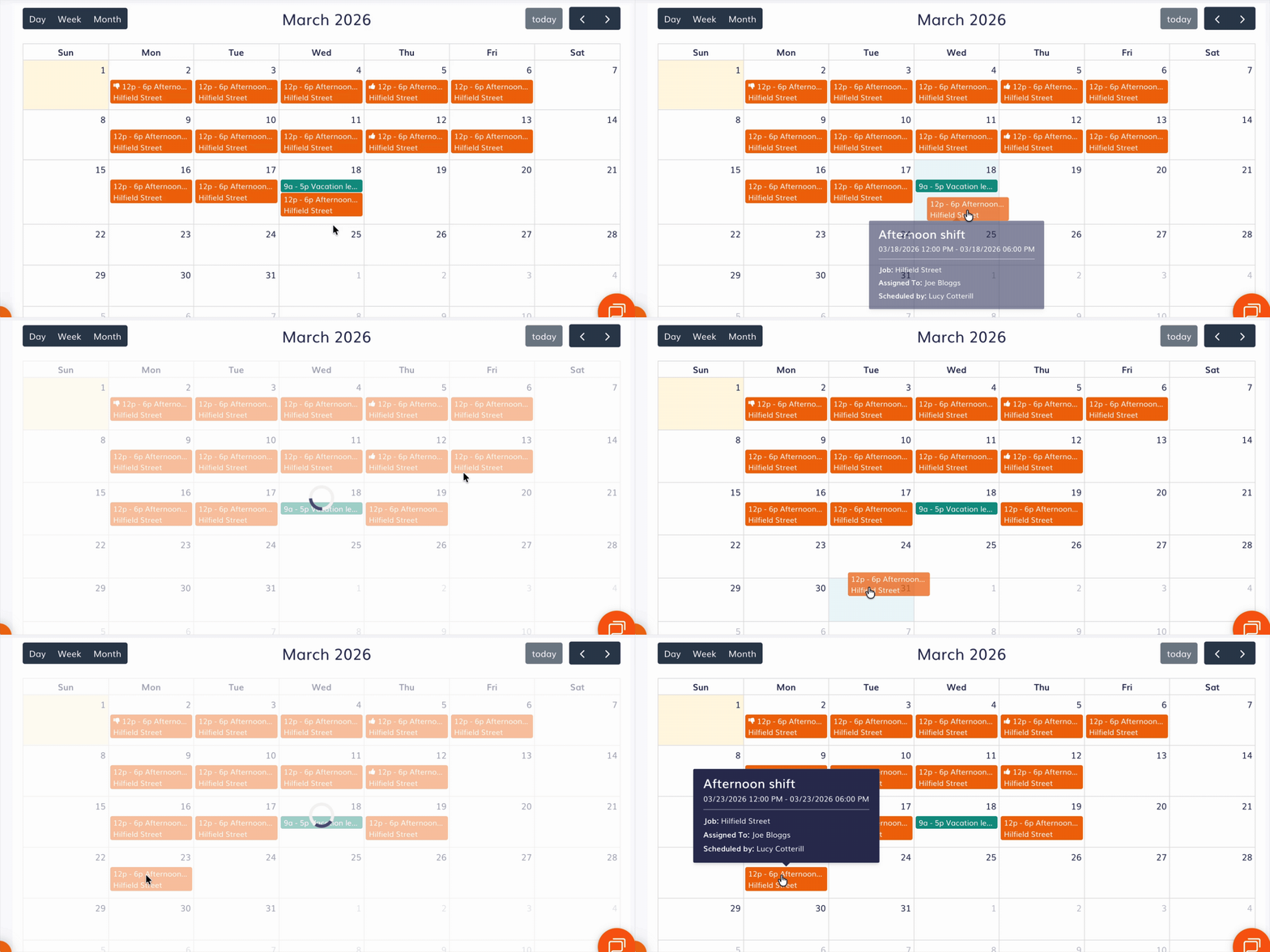
I liked that I could create shifts in various time zones — handy for global teams. I could also assign schedules to a particular job (color-coded for ease) and set schedules to recur daily, weekly, or monthly, if needed. If I wasn’t ready to publish right away, I could save my schedule as a draft and return to it later.

Disappointingly, I couldn’t see my team’s working preferences at a glance, which could be tricky with larger teams. That said, it was easy to edit schedules by simply dragging a shift to a different time or date. Notifications for new and updated shifts are sent instantly, keeping employees in the loop via email, phone, or both, depending on your settings.
I also tested the schedule acceptance feature. With this turned on, a thumbs-up icon appeared in the calendar view when a shift had been accepted, giving me confidence that the work was covered. A thumbs-down icon showed when a shift was rejected; however, I felt this visual flag could have been more obvious — for example, by highlighting the entire shift in red.

I appreciated being able to view, edit, and create schedules in the mobile app — something that’s not possible in every app I’ve tested — although I found it much easier with the full visibility of the web interface.
Finally, I liked the option to limit clock-ins to scheduled shifts only and prevent early clock-ins.
Scheduling with Timeero for employees
During my testing, I set up a shift for my test employee, and received a notification and email almost instantly. I was also sent a notification if my shift changed.
Frustratingly, the option to approve or decline each shift was available only in the mobile app, which could be inconvenient for desk-based employees. I’d also have liked to add an explanation when rejecting a shift, but sadly, the notes box was only for the manager’s use during setup.
I could view my shifts via both the web interface and phone app, with the former giving the best overview. I could clearly filter my shifts by day, week, or month, with booked vacation periods clearly visible at a glance.

In the app, however, I could only view my schedule in list form, scrolling through my shifts in date order.
While Timeero’s scheduling tools were intuitive overall, there are some areas for improvement. It wasn’t possible to specify availability periods, and while I could see who else was on shift, I wasn’t able to arrange swap shifts directly as on Buddy Punch and Connecteam.
Verdict: 4 / 5
Schedules in Timeero are easy to build and edit, with instant notifications sent to employees. I love that you can import schedules, but I’d have liked to see shift swapping and clearer visibility and communication around rejections.
Attendance and labor cost management
Timeero has the features I expected to see for managing attendance and labor costs, including:
- Strong geofencing tools
- Punch limiting
- Time rounding
- Overtime alerts
- Automatic break tracking
- Clock-in/out reminders
In addition to real-time insights on the Timeero dashboard, managers can receive notifications when employees are running late for their shifts, creating a useful audit trail to support attendance conversations.
I liked that I could create overtime rules and rates to manage labor costs. For example, these could be based on California overtime rules or kick in after a set number of hours per day or per week. Helpfully, I also received notifications when a user was approaching overtime.

I also liked Timeero’s flexible time-rounding rules, which let me round time up, down, or to the nearest increment of my choice between five and 30 minutes. This ensures consistency across your employees’ timesheets and reduces the number of manual adjustments during payroll.

As a manager, I found it simple to handle paid and unpaid breaks in Timeero. Employees could log their breaks manually — ideal for those who work flexibly and whose break times vary. Alternatively, Timeero allowed me to insert an automatic break after a set number of hours, with a prebuilt option for California’s strict break rules.
Verdict: 4 / 5
Timeero offers useful tools to monitor and control labor costs while ensuring your business remains compliant with legislation on break times and working hours. That said, I was disappointed that many of these features are missing from the Basic plan. To set up multiple overtime rules and geofencing, you’ll need to be on the Pro plan or above.
Timesheets and payroll
In Timeero, time punches are automatically added to an employee’s timesheet.
I could view a clear summary of all my team’s timesheets in the Time and Mileage tab. And thanks to the ability to assign clock-ins to specific jobs, I got a good overview of how my team was spending their time.

Unlike some competitors, there’s no requirement for employees to submit their timesheets in Timeero. Instead, timesheets are available to view at any time, with queries such as missed clock-outs, unusually high mileage, or overlapping shifts highlighted for a manager’s attention.
Clicking into each shift-based entry gave full visibility of the route my employee had taken, breaks, photographs, and client signatures.

Employees cannot amend timesheets directly, but as a manager, I can view and adjust them as needed before approval. A detailed activity log kept an audit trail of any revisions.
In addition, instead of having one timesheet per pay period, Timeero provides one per shift. Although this allows greater focus on routes, mileage, and tasks completed, it requires more review effort from managers when preparing for payroll, even when using one of Timeero’s payroll integrations. For those seeking a simple monthly approval, it may feel like overkill, especially if mileage isn’t a priority.
Verdict: 3 / 5
Timeero’s shift-based timesheets won’t be for everyone; however, the granular level of detail helps businesses with mobile employees closely monitor costs — ideal if you’re charging time to particular clients or projects.
PTO and leave
Timeero offers paid time off (PTO) tracking for Pro subscriptions and above, helping you manage requests for vacation, parental leave, maternity leave, and other absences.
Timeero PTO and leave for managers
Managing paid time off and vacation in Timeero was straightforward — I could review and action requests from both the web browser and mobile app.
To get started, you’ll need to create time-off categories based on your business rules.

For each time-off category, I could select whether it was paid or unpaid and set whether the duration was measured in days or hours. I could also assign it to a particular user or group and even color-code it.
I liked being able to set minimum and maximum numbers of days-per-request for each absence type, based on business rules, e.g., no more than 14 days of vacation could be booked at a time. I could also set accrual rules by year or month, and specify whether leave can carry over and whether negative balances are allowed.
While these rules offered good flexibility and were easy to adapt for part-time employees, there was nothing to prevent employees from booking leave during peak periods, nor was there a way to require a minimum notice period.
Once I’d set up the categories, managing requests was simple. From the Time Off tab in the left-hand menu, I could see a list of pending and approved requests, a calendar, and balances for all users or specific users. I loved how I could also choose to add leave to an employee’s schedule and timesheet when approving it.
The calendar view also let me check whether anyone else was on leave before approving, but I’d have loved to see a visual snapshot on the approval screen, rather than having to flick between tabs for a manual check.
Also, during testing, my employees’ balances only reduced after leave was taken, not when it was booked, so the balance didn’t appear to be reduced when vacation requests were approved. This could lead to some confusion.
Timeero PTO and leave for employees
As an employee, it was easy to book leave by selecting the time off category and dates. Providing a reason was mandatory, which felt a bit unnecessary for vacation requests, even if understandable for sickness.
I liked how I could see a clear summary of pending and approved requests and check my balance at any time.

As with the manager’s view, however, Timeero’s balances were confusing in practice. Despite booking all 25 days of my allowance, it still showed only three days booked unless I selected a view date after my planned leave. I’d prefer it if leave days were deducted instantly, like in Buddy Punch and Connecteam, and added back if pre-booked leave was canceled.
Verdict: 3 / 5
As it’s a paid feature, I expected more from Timeero’s PTO management. While creating categories and rules is easy, visibility for managers before approving leave could be improved. Confirming remaining balances with confidence is tricky, which could result in employee queries or attempts to overbook.
Other Timeero features
An additional feature that stood out during my Timeero testing was Message Blast — a one-way communication tool that supports company-wide announcements.

I found it quick and easy to use Message Blast to create messages and assign them to the whole business, groups, or individuals. The presentation could be improved, however; the text is tiny on the Timeero app. It’s also only a one-way form of communication, which is less advanced than some competitors.
User interface and ease of use
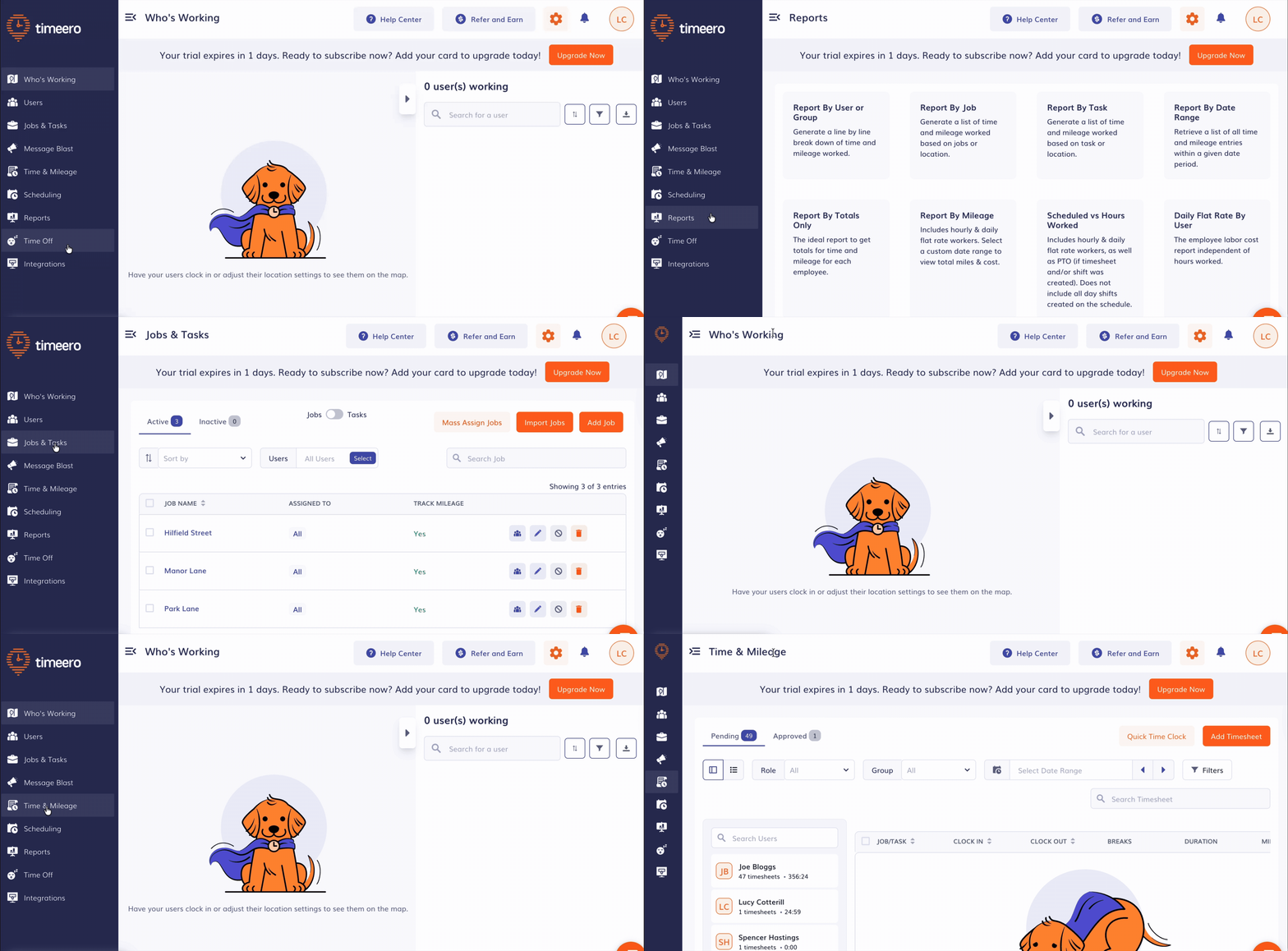
In the web browser, I found the Timeero interface clear, uncluttered, and organized, with its modern color scheme of navy, orange, and white. Unlike some competitors, the contrast was visually pleasing and easy to read.
While I couldn’t change the order, I found the simple side menu intuitive and easy to navigate — it made the learning curve simple even for non-technical employees. I was quickly able to switch between using the time clock, viewing my schedule, and accessing timesheets, all without multiple click-throughs.
I also loved that you could minimize the side menu to make it easier to view calendars or reports.
On the flip side, I was quite disappointed with the Apple app. While the functionality worked as expected, the app’s interface looked a bit amateur. The font is very small, occupying only a small portion of the available screen. I couldn’t see any obvious accessibility options to make the font bigger.
Verdict: 3.5 / 5
Timeero is intuitive and easy to use. The web user interface impressed me, but as most field employees will be using the app, it could be more visually pleasing.
Timeero’s mobile app
- Google Play Store Score: 3.1/5 based on 196 reviews
- Apple App Store Score: 4.7/5 based on 509 reviews
Manager mobile app experience
The Timeero app is available on both the Apple and Google Play stores, with more glitches reported on Android devices. I tested it on my iPhone, and didn’t experience any lag or logouts.
The Timeero app mirrors the web experience, with features like Who’s Working, PTO management, and even job management all accessible from the app. However, while I could create new schedules on the app, the web browser was by far the easier choice.
For detailed reporting, viewing audit logs, and setting up payroll integrations, I needed to return to the web browser.

Employee mobile app experience
Employees can view shifts, track hours worked, routes taken, mileage totals, and manage PTO, all from one place. They can also take photos, add notes, and even request client signatures for proof of work.
The app’s standout feature is its offline mode — handy if field employees travel to areas with poor reception. All data syncs automatically when back online.
A short video about privacy plays when employees first use the app, which was reassuring to see. Employees are required to enable “Location: Always” and Motion & Fitness permissions in their phone settings, but the app only records location data while they are clocked in. This leaves employees free to use other apps while their route is captured in the background.
It’s worth noting, however, that Timeero will stop tracking if a user accidentally force-closes the app, so this may result in some missed or incomplete punches.
Verdict: 3.5 / 5
While the app’s overall functionality is good, the user interface could be better — it’s very simplistic, and the small text lacks impact.
Reporting
Timeero offers a range of pre-built reports that provide useful insights into time and mileage. These can be run for a single employee, a group (e.g., maintenance staff), or a job. However, while I could run a scheduled vs. worked hours report, I’d love to have seen more standalone attendance-based summaries.

Reports are mostly in tabular format, so you’ll need to export to Excel if you want to create visual charts for a client.
Verdict: 4 / 5
While Timeero’s range of reports had nearly everything I was looking for, I found the lack of customization a little disappointing. That said, they do appear to be expanding their report suite based on customer feedback.
Help and support
Timeero is praised for its customer service. In addition to a detailed help center with user guides and videos, it offers a variety of support options, including phone, email, and live chat.
Unlike many of its competitors, however, it doesn’t appear to offer round-the-clock support. Despite listing their phone and email support as 24/7, timings were contradictory. According to their chat function, you’ll only receive a reply during office hours, which are 6 a.m. to 5 p.m. (MST), Monday to Friday.
Within those hours, response times were fast. I contacted live chat and received a reply within four minutes. The responses were short but helpful, pointing me to the right resources to fully answer my question.

When I tried live chat outside core support hours, I was directed to email instead.
Verdict: 3.5 / 5
There’s a detailed Help Center and great signposting, but the lack of 24/7 contact could be challenging for international teams or those working nights or non-standard hours.
Pricing
Timeero has four pricing levels: Basic, Pro, Premium, and Enterprise, with the latter designed for larger businesses and priced on application. If you pay annually, you can secure a reduced rate — effectively getting one month free each year.
Here’s a breakdown of the pricing tiers:
| Basic (max 10 users) | Pro | Premium | Enterprise | |
| Price per user per month (annual payment) | $3.66 | $7.33 | $10 | Contact for pricing |
| Price per user per month (monthly payment) | $4 | $8 | $11 | Contact for pricing |
| Features | – Time tracking – GPS tracking – Mileage tracking – Break tracking | Everything in Basic, plus: – Job tracking – Payroll integrations – Scheduling – California break policy – Geofencing – Message Blast – Photo attachments | Everything in Pro, plus: – Time-off management – Facial recognition (kiosk) – Commute mileage – Suggested mileage – EVV (Electronic visit verification) – Public API – Signatures – Custom fields | Everything in Premium, plus: – Dedicated account manager – Priority support – Custom implementation |
Timeero has no free plan, but for small businesses seeking a simple time and mileage tracker, the Basic plan supports up to 10 users.
However, most small to medium-sized businesses would be better off paying for Pro, which includes geofencing, integrations, job tracking, and scheduling.
If you’re looking to use the full range of features, including PTO management, you’ll need to be on the Premium level. As a result, Timeero can end up costing more than competitors like Buddy Punch.
Verdict: 4 / 5
While there’s no free plan, I liked the transparency of Timeero’s pricing structure. It offers good value for businesses seeking reliable mileage and time tracking, but some useful features, including time-off management, are limited to Premium plans and above.
Integrations
Timeero’s payroll integrations are only available on the Pro plan or above. If you’re on the Basic plan, you’ll need to export employees’ time and mileage data as a CSV file and upload it manually to your payroll system.
On plans that include integrations, Timeero connects with several accounting and payroll solutions, including QuickBooks, Gusto, Xero, and Paychex.
If your business has a dedicated IT team, you can use Timeero’s public API to build integrations.
Verdict: 4 / 5
Timeero offers a decent range of integrations compared to other providers, but sadly, you’ll need to be on the Pro plan or above to reap the benefits, particularly in relation to payroll.
Security
Timeero takes security seriously. It encrypts your data to an industry-standard AES-256 level — the same level used by most banks and financial institutions — so you can be confident your team’s personal info is protected from loss or unauthorized access. The company’s detailed privacy policy also reassures employees about how it handles their personal data.
During setup, I configured different access levels and permissions for each user to ensure data was viewed on a need-to-know basis. For example, employees could only view their own time, mileage, and PTO data, while managers could view data for all their team members.
Healthcare professionals can rest assured that Timeero complies with HIPAA regulations, ensuring that employees’ health and location data are stored securely to protect patient privacy.
Finally, access to Timeero is password-protected. Optional photo authentication for kiosks prevents buddy punching, while accurate GPS and geofencing tools help prevent time theft.
Verdict: 4.5 / 5
Overall, Timeero has strong security measures to protect your employees’ personal data. For example, I appreciated the regular reassurance about the privacy of location data, which would help minimize any pushback or resistance. However, some of these features, including photo authentication, are limited to the more costly plans (a consistent theme with Timeero), so I’ve knocked half a point off the score.
Timeero: Top 3 alternatives
If, after reading this review, you’re not convinced that Timeero is the right time tracking app for your team, here are three Timeero alternatives you can consider.
1. Buddy Punch – Best Timeero alternative for affordability
Buddy Punch is a more affordable option than Timeero for location tracking. This flexible, easy-to-use time tracking app supports salaried, hourly, and shift-based teams, including remote, mobile, and field-based employees. With GPS on punch, strong geofencing tools, and real-time GPS tracking, you can easily see your employees’ journeys throughout the day.
- Capterra rating: 4.8/5 (1115 reviews)
- Starting at: $4.49 per user
Time tracking

Buddy Punch offers multiple time tracking methods, including via a web browser, mobile apps, and kiosk mode on a computer or tablet. Using job costing, managers can easily track time (and labor costs) for specific departments, customers, and projects.
Unlike Timeero’s shift-based timesheets, Buddy Punch produces timesheets per pay period, making it easier to see at a glance the total time and cost per employee.
Attendance management
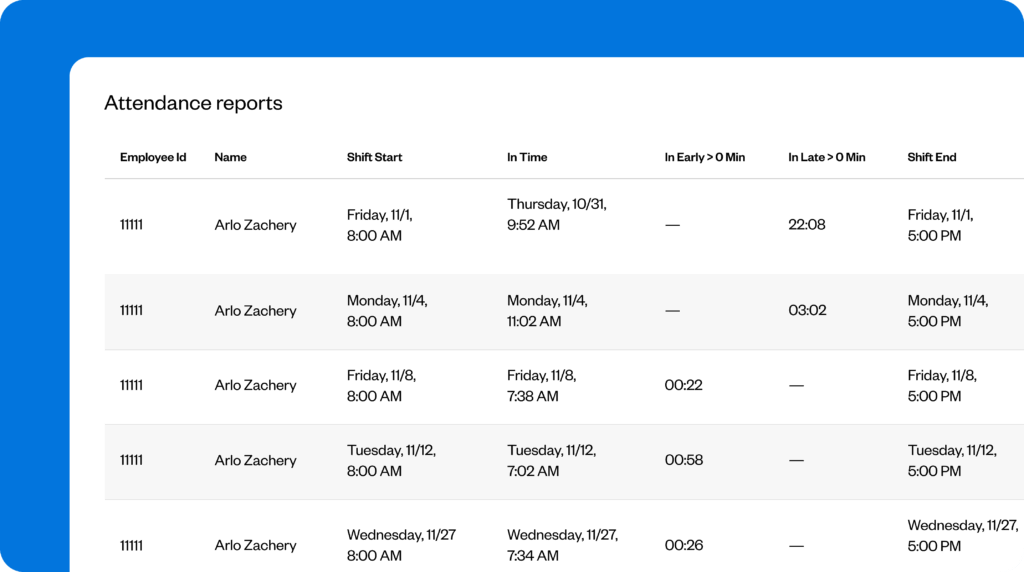
With GPS location tracking, geofencing, facial recognition, and IP address locking, Buddy Punch provides real-time visibility into your workforce. You can receive helpful alerts and view detailed reports to manage attendance issues such as late clock-ins or no-shows.
Scheduling
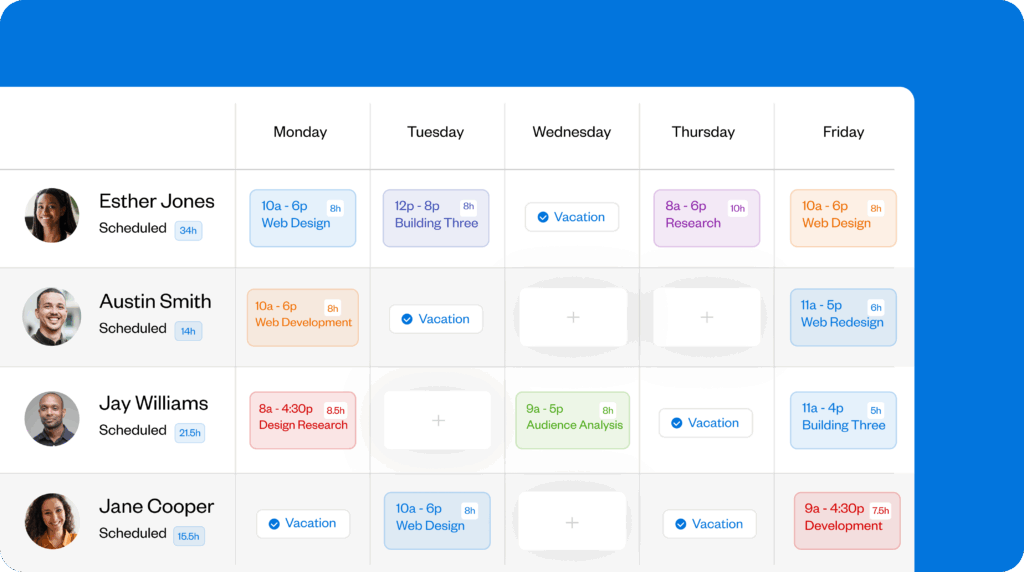
Buddy Punch has customizable drag-and-drop scheduling tools. With support for shift templates, recurring shifts, and instant notifications, schedules are easy to build and edit. And, unlike in Timeero, employees can set their availability and directly swap shifts with a colleague.
PTO management
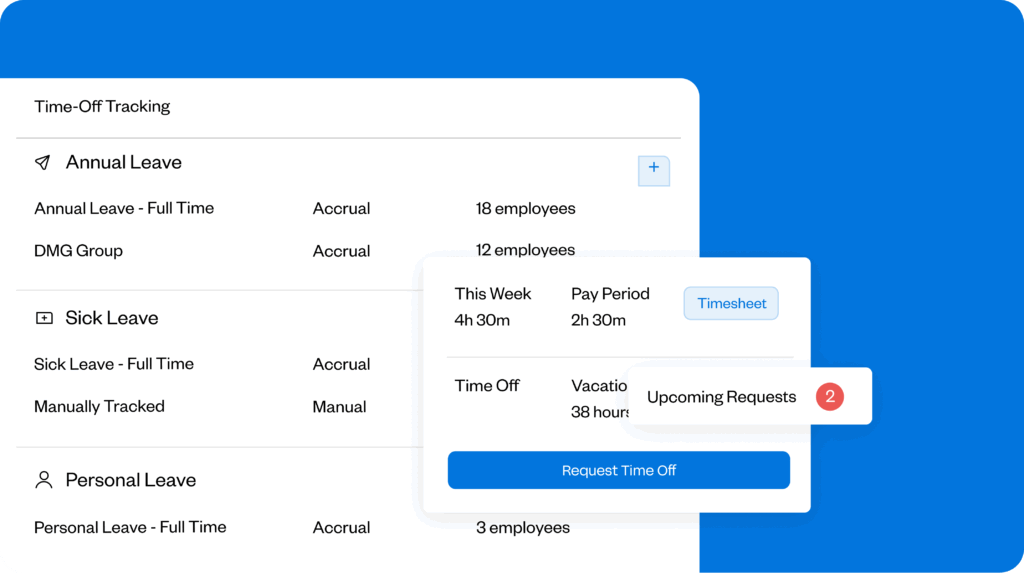
PTO tracking is included on all of Buddy Punch’s plans. You can build a range of PTO policies, including vacation, sick, and personal leave, with flexible accrual rules. Unlike Timeero, balances are calculated in real time — days are deducted from your employees’ balances as soon as leave is booked. You can also set blackout dates to prevent leave bookings during peak periods.
And much more
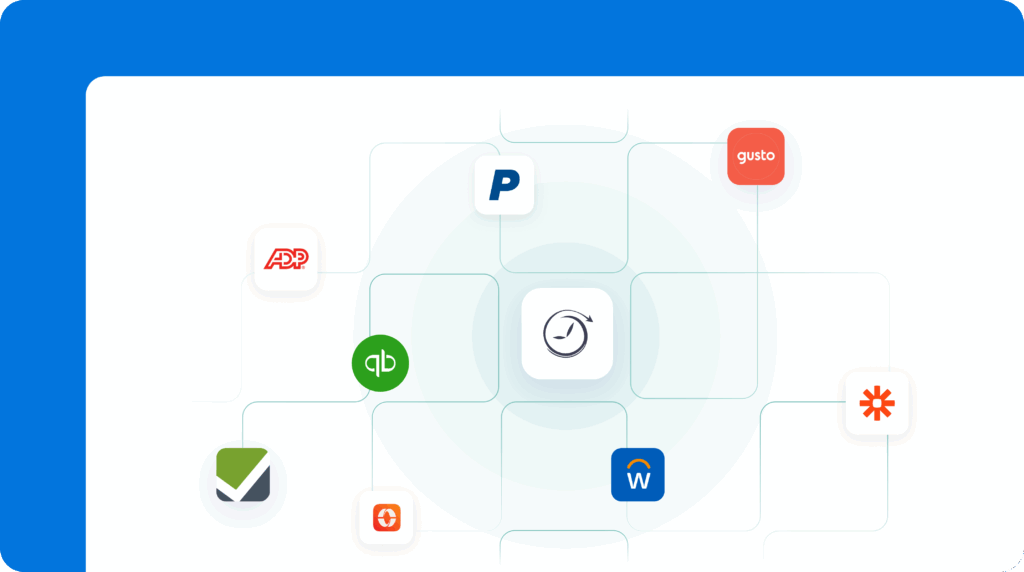
Buddy Punch also offers seamless payroll integrations (even on basic plans), customized project tracking, automatic break and overtime calculations, and much more.
Learn more about Buddy Punch
- Start a free trial — no credit card required
- View pricing
- Watch a video demo
- Take an interactive product tour
- Request a personalized demo
2. Connecteam – Best for teams that need HR features

If you’re seeking a broader time management and communication tool, Connecteam’s all-in-one app is worth considering. In addition to GPS-based time tracking with geofencing to minimize time theft, Connecteam offers flexible scheduling and two-way communication tools — a step up from Timeero’s one-way Message Blast feature. That said, due to the complex, multi-hub pricing structure, it can become costly for growing businesses.
- Capterra rating: 4.6 (4,910 reviews)
- Starting at: $29 per month
Learn more about Connecteam
- Read our in-depth Connecteam review
- Compare Buddy Punch vs. Connecteam
- Discover the best Connecteam alternatives
3. MileIQ – Best for mileage tracking

If accurate mileage tracking is your top priority, MileIQ is an easy-to-use alternative. As a dedicated mileage tracking app for drivers and mobile staff, it doesn’t require manual clock-in. Instead, it runs in the background using GPS movements to create accurate mileage logs for travel reimbursement. That said, there’s no time tracking, scheduling, or team messaging at all, so you’re paying a premium for simplicity.
- Capterra rating: 5/5 (3 reviews)
- Starting at: $8 per user
Methodology: How I tested Timeero
I’ve worked in Human Resources for over 20 years and have used a variety of time tracking tools throughout my career. I’ve also had hands-on experience with several time tracking apps in 2026, thoroughly testing and comparing key features.
For this review, I signed up for a free 14-day trial of Timeero, creating manager and employee accounts for insights from both perspectives.
I accessed Timeero via the web browser on a Mac, working through key features and taking screenshots to document my experience. I also closely compared the web experience with that of the mobile app to assess the benefits of Timeero for field-based teams.
First, I tested the core features, including time tracking, scheduling, PTO management, and reporting, before exploring additional features such as the Message Blast tool. Next, I scrutinized Timeero’s pricing plans, integrations, and security features, reviewing how it fared compared to competitors and considering value for money.
Finally, I watched hours of demos and training videos in the Timeero Help Center. I also reached out to customer support to fill any gaps in my understanding, considering their responsiveness and the clarity of the response.
Based on my findings, I scored each section of my review by balancing the positives and negatives. I deducted points for missing features or any elements that I felt were overly complex or frustrating to use.

