
Comprehensive list of all Buddy Punch features
If you want to see everything Buddy Punch can do — or just check to make sure it has one of your must-have features — this comprehensive list of all of Buddy Punch’s features has the details you need.

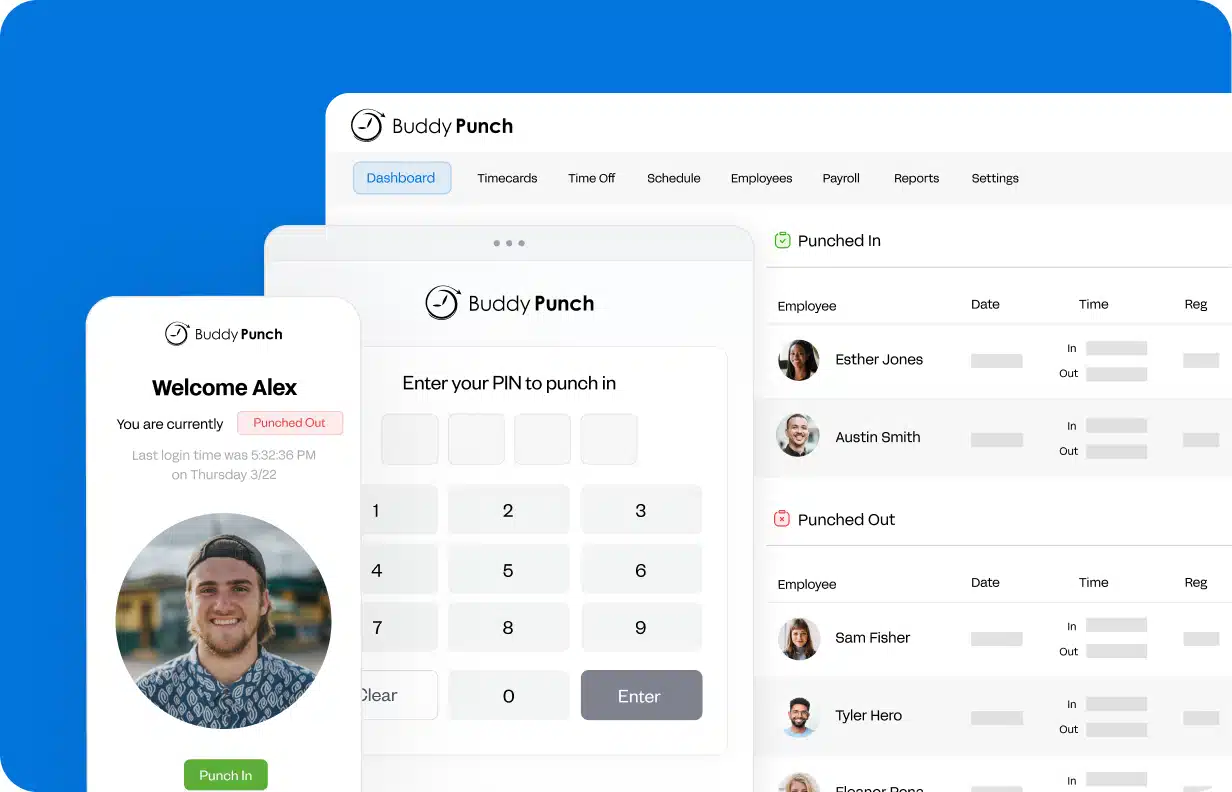
Featured feature: Unlimited customization
Buddy Punch adapts to how your business runs, not the other way around. Turn any feature on or off and decide who it applies to. For example, you can require location tracking for all employees for only ones you specify, or you can let all employees submit shift trade requests or restrict it to certain groups of employees. Set up the platform to match your exact policies.
The basics
Get familiar with the foundations of Buddy Punch, including how employees access it, how user roles and permissions work, and the different ways people can sign in.
Accessing Buddy Punch
Web app
Office-based employees can log into Buddy Punch’s web app on their computers to either clock in and out or enter their hours manually.
Mobile apps
Deskless employees can download Buddy Punch’s mobile apps for iOS or Android to clock in and out on their smartphones.
Kiosk mode
Use the Buddy Punch app on a tablet to create a kiosk all co-located employees can use to clock in and out.
User roles
Administrator
Administrators have access to see all data, manage all settings, and perform all administrative tasks in the platform. They can add and remove employees and managers, download all reports, and set up integrations.
Manager
Managers are assigned a group of employees that they can oversee. They can approve those employees’ timesheets, review and approve shift trade/cover and PTO requests, create shifts for their employees, and more.
Employee
Employees only have access to their own data. They can clock in and out, view their timesheets, request time off, request shift trades/covers, enter their availability, view their PTO balances and schedules, and more.
Logging in to Buddy Punch
Username and password
Employees can enter their username and password to log in to Buddy Punch on a mobile phone or computer. Unique email addresses are not required to create employee accounts.
Touch ID
Employees using iOS phones/tablets or Android phones/tablets that support Touch ID can log in to Buddy Punch using fingerprint recognition so they don’t have to enter a username and password.
Single sign-on
Employees can access Buddy Punch using single sign-on with their Google, Apple, Okta, OneLogin, or Microsoft Entra credentials. Administrators can also sign in to Buddy Punch using their Intuit credentials if you’ve set up the QuickBooks integration.
PINs
Admins can assign each employee a unique four-digit personal identification number (PIN) that they can use to clock themselves in and out at your time clock kiosk.
QR codes
Buddy Punch creates unique QR codes for each of your employees. After you print and distribute them, employees can clock in and out at the kiosk by scanning their QR codes.
Face ID (iOS only)
Employees using iPhones or iPads that support Face ID can log in to Buddy Punch using facial recognition so they don’t have to enter a username and password.
Time tracking features
Learn how Buddy Punch records employee hours and turns them into accurate, payroll-ready data, with features for tracking overtime, managing labor costs, preventing time theft, and reporting.
Logging time
Clocking in and out
Hourly employees can record their time by punching in when their shifts start, clocking out and back in for any unpaid breaks, and punching out at the end of their shifts.
Duration entry
Salaried employees — or any employees whose time doesn’t need to be tracked down to the second — can enter the hours they worked manually using duration entry.
Time entry permissions
Admins can specify which time entry options each employee is allowed to use. Set permissions to allow clocking in and out only, duration entry only, or both.
Group punch
If your employees are all working the same hours at the same location, an administrator can clock everyone who’s working in and out at the same time.
Offline mode
When there’s no cell service, employees can still clock in and out using offline mode. The data is uploaded to Buddy Punch when a cell signal or internet connection is reestablished.
Overtime tracking
Default overtime settings
Configure how overtime is applied by entering the starting day of your workweek, choosing your overtime type, and specifying if you need to track federal and state overtime separately.
Custom overtime rules
Buddy Punch comes with the most common overtime types built in, but if the policy you need isn’t on the list, you can create your own custom overtime rule.
Custom overtime settings
If you have employees who need overtime settings that are different from your default, you can create custom overtime rules and apply them to individual employees.
Include PTO in overtime calculations
If you need to consider paid time off hours as well as worked hours when determining if an employee should be paid overtime rates, you can configure the system to include PTO in overtime calculations.
Overtime pay calculations
If you enter hourly rates for your employees, Buddy Punch will automatically calculate their regular and overtime pay for you each pay period. Employees can also view their estimated pay on their timesheets.
Multiple pay period schedules
If you’re using Buddy Punch to track time for different branches of your business and each has its own pay schedule, you can set up multiple pay schedules and assign them to specific employees.
Job costing
Creating job codes
Create job codes (called department codes in Buddy Punch) for each job or project you want to track labor hours against. Assign the codes to the employees working on those jobs.
Selecting department codes
If an employee is only assigned to one department code, their time is automatically tracked toward that job. If someone is assigned to more than one department code, they’ll be prompted to select the right job when clocking in.
Switching department codes
If an employee changes the jobs they’re working on over the course of a shift, they can click “Switch” in the app to select a new department code — they don’t need to clock out and back in.
Tie jobs to worksites
Set up geofences for each of your worksites and connect those geofences to your department codes. Then, when an employee clocks in inside of a geofence, their time is automatically billed to that geofence’s department code.
Hours report by location/department/position
See how many hours employees worked under each location, department, or position code over any date range for tracking labor by project, job, worksite, or role.
Locations
Creating locations
Create locations in Buddy Punch to track employee time by location. This is helpful when you’re using the system to track time for employees working in different stores, restaurants, or offices.
Selecting locations
If an employee is only assigned to one location, their time is automatically attached to that location. If someone is assigned to more than one location, they’ll be prompted to select the location they’re working at when clocking in.
Switching locations
If an employee changes the location they’re working at over the course of a shift, they can click “Switch” in the app to select a new location — they don’t need to clock out and back in.
Attach locations to geofences
Set up geofences for each of your worksites, then connect those geofences to your locations. After that, when an employee clocks in inside of a geofence, their time is automatically attached to that location.
Attach locations to shifts
If you’re also using Buddy Punch for employee scheduling, you can add the location the employee is scheduled to work at to their shifts.
Positions
Creating positions
Create positions in Buddy Punch to track employee time by role (e.g., front of house, back of house, foreman, cashier). This is helpful if you want to analyze your labor costs by team or role.
Selecting positions
If an employee is only assigned to one position, their time is automatically attached to that position. If someone is assigned to more than one position, they’ll be prompted to select the position they’re working in when clocking in.
Attach positions to shifts
If you’re also using Buddy Punch for employee scheduling, you can add the position the employee is scheduled to work in when you create a shift in the schedule.
Break tracking
Manual breaks
Manual breaks are breaks that you need employees to manually clock in and out for. Specify if they’re paid or unpaid, enter the minimum amount of time the employee is required to stay on the break, and then assign the breaks to employees. Employees click “Start break” and “End break” buttons to log the breaks they take.
Automatic breaks
Automatic breaks can be used when you don’t need employees to clock in and out for their breaks. Automatic breaks can be set as paid or unpaid and can be triggered based on the number of consecutive hours worked or the total hours worked in a day. Add the length of the break in the break rule and then assign employees to it.
Minimum break times
Setting a minimum break time prevents employees from ending their break before the required duration of the break has passed. If they try to end the break early, they’re shown an error message that says they’re not allowed to end their break until the required amount of time has passed.
Maximum break duration
If you set a maximum break duration, any time an employee spends on a paid break that exceeds the maximum break duration becomes unpaid break time.
Break alerts
You can set up break alerts to 1) remind employees to take a required break, 2) notify managers/admins that an employee didn’t take a required break, and/or 3) notify managers/admins that an employee did take a required break.
Paid and unpaid break time report
Get a detailed breakdown of employees’ break times separated into paid and unpaid breaks. The report includes all punch in and out times, total hours worked, paid break time, unpaid break time, and total paid hours.
Labor cost saving features
Punch rounding
Automatically round employees’ punches up or down to either the nearest selected increment. You can also opt into rounding time when an employee uses the switch option to select a different department code or location.
Punch limiting
Punch limiting lets you set limits on when employees are allowed to clock in and out. For example, you can set up limits to keep employees from clocking in more than five minutes before their shift starts or clocking out more than five minutes after their shift ends.
Automatic clock-outs
Automatically clock employees out either at the end of their shift (if using Buddy Punch for scheduling) or after they’ve worked for a set number of hours (if not using scheduling).
Overtime alert
Get an alert when an employee is nearing overtime so an admin can adjust the schedule, a manager can encourage the employee to call it a day, or an employee can remember to clock out before hitting overtime.
View labor costs on the schedule
If you’ve assigned hourly pay rates to your employees in Buddy Punch, you’ll be able to see your total labor costs on your schedule for each day you’ve scheduled employees to work.
Actual vs. scheduled hours report
Compare the hours employees were scheduled to work with the hours they actually worked, with any differences highlighted. This helps you catch overtime and understaffing before they become a pattern.
Early/late report
See any instances of employees clocking in early for their scheduled shifts over a specific timeframe.
Alerts and reports
Get an alert when an employee’s punch is blocked by your punch limiting rules, and view all blocked early clock in attempts on the employee error log report.
Time theft prevention features
Photo verification
Require employees to take a selfie when clocking in and out. Those photos will appear on their time cards and can be reviewed by managers/admins to ensure no one was buddy punching.
IP address locks
Only allow employees to clock in and out from a specific IP address (i.e., when they’re connected to your business’s Wi-Fi). This prevents employees from punching in/out while offsite.
Device locks
Require employees to clock in and out from a specific device like their work computer to, for example, prevent them from punching in/out while offsite using their cell phones.
Geofencing
Create geofences — virtual borders around your job sites or business locations — to prevent employees from clocking in or out when they’re not on site. Get an alert when an employee attempts to punch in/out while not in an assigned geofence.
Basic GPS
Automatically log an employee’s GPS location to their timesheet when they clock in and out. Those locations can then be viewed on employees’ timesheets to ensure no one was punching in/out while offsite. Punch locations can also be viewed on a map.
Punch blocked alert
Admins and managers can get an alert when an employee’s punch is blocked by the system’s automated time theft prevention features (geofences, IP address locks, or device locks).
Geofence enter/exit alerts
Admins and managers can get an alert each time an employee enters or exits a geofence, helping you identify if the employee is leaving the worksite while on the clock.
Real-time GPS
Track employees’ locations in real time the entire time they’re on the clock, and see where employees are located at any time on a map.
GPS activity report
View a map of the routes that employees traveled while clocked in to see where employees were during their shifts.
GPS spoofing prevention (Android only)
If an employee is trying to get around location tracking by broadcasting false GPS signals, the app will detect that Mock Locations is being used and give an employee an error stating that Mock Locations must be turned off before they can clock in or out.
Employee error log report
See every time an employee got an error while trying to clock in or out because of geofencing, IP address locks, or device locks. It’s a quick way to tell whether someone is trying to punch from the wrong place/device.
Customization
Apply to all or individual employees
Make features required for all employees, required only for specific employees you select, optional for all employees, or optional only for specific employees you select.
Groups
Create groups of employees to assign department codes, locations, positions, managers, geofences, etc. to multiple employees at once.
Features for keeping payroll accurate
Submitting timesheets
Require employees to review and submit their timesheets at the end of each pay period.
Submit timecard reminder
Send an email or push notification to employees reminding them to review and submit their timesheets.
Required agreements
Add a statement that employees have to agree to when submitting their timesheets (e.g., “I confirm that my hours are accurate and that I took all required breaks”).
Timesheet approvals
Require a manager or admin to review and approve all of their employees’ timesheets at the end of a pay period. Timesheets that have issues can be rejected and sent back to the employee for changes.
Approve timecard reminder
Send an email or push notification to admins or managers reminding them to review and approve all employees’ timesheets.
Punch approvals
If you don’t want to wait until the end of a pay period to have managers and admins review timesheets, you can have them review and approve/reject each of their employees’ punches individually.
Punch editing
Admins and managers can add, edit, and delete employees’ punches as needed to correct errors. Employees can also edit their punches if they’re given permission to do so in the system.
Required notes on edits
You can require that notes are left any time a time entry is edited by anyone so you will have a record of why a time entry was changed.
Lock pay periods
If you’ve finished reviewing all timesheets and have payroll ready to go before it’s time to submit it, you can lock the pay period so no additional changes can be made to it.
Punch alerts
Admins and managers can get alerts for all punches. Employees can get alerts reminding them to clock in at a specific time or clock out at a specific time.
Early in/late out alerts
Admins and managers can get a notification when an employee clocks in more than a specified amount of time (e.g., 15 minutes) before they’re scheduled to start work or clocks out more than a specified amount of time after their shift ends.
Missed in/out alerts
Admins and managers can get an alert when an employee fails to clock in for a shift they’re scheduled for or fails to clock out for a shift they’re scheduled for.
Features for sending time data to payroll
Payroll export report
The payroll export report is the report most businesses use to run payroll. It shows each employee’s total hours for a pay period, broken into regular, overtime, double-time, and paid time off hours. You can split hours by location, department, or position. You can export it as an Excel file formatted according to the guidelines of your existing payroll provider.
Payroll integrations
Buddy Punch has pre-built integrations with the following accounting and payroll systems: ADP RUN, ADP Workforce Now, Auris (Heartland), Deltek ComputerEase, Deluxe Payroll, Gusto, iSolved, Justworks, Paychex Flex, Paycor, Paylocity, PaymentEvolution, PayPlus, QuickBooks Desktop, QuickBooks Online, Rippling, SurePayroll, TriNet Payroll, Viewpoint, Wagepoint, and Workday.
If your payroll system doesn’t have a pre-built integration, you can connect it through our Zapier integration or API.
Employee IDs
Add each employee’s employee ID number to their profile in Buddy Punch for your own reference or as needed for syncing data to payroll through an integration.
Reports
Daily hours report
See how many hours each employee worked each day over any date range you choose. Individual punches aren’t shown, just daily totals, so it’s an easy way to spot who worked when. You can also split hours by location, department, or position.
Time card report
Download employees’ time cards for a specific pay period as CSV files. Each time card includes daily punch details and both daily and pay period totals. You can run it for one employee, several, or everyone at once. When you select more than one employee, you get a ZIP file with one CSV per person.
Employee detail report
This is a PDF version of employees’ time cards with detailed punch information and daily and pay period totals for any date range. You can choose to include paid and unpaid time off, location/department/position names, notes, time card approval history, and estimated pay.
Enhanced employee time card report
Get a more detailed view of employee time cards, including punch in and out times, each time card’s approval status, and total hours broken into regular, overtime, and paid time off.
Hours summary report
Get each employee’s total regular, overtime, and double-time hours over any date range in a single view. Individual punches aren’t included — just the totals.
In/out activity report
See every punch employees made each day over a specific timeframe, along with their total hours for each day. You can also include employees’ pre-rounded punch times so you can compare them to their rounded times.
Deleted time report
The deleted time report shows which punches were deleted, when they were deleted, and who deleted them over any date range.
Employee profile details report
Export a complete list of employee profile information, including names, usernames, email addresses, employee IDs, time zones, hire and termination dates, phone numbers, and whether each employee is active.
Deliver reports on a schedule
Schedule advanced reports to be sent automatically via email to desired recipients. Choose the format (PDF, Excel, or CVS), decide how often you want them sent (weekly, bi-weekly, or monthly), and choose the day they’re sent on.
Scheduling features
Learn how Buddy Punch helps you create work schedules, with features for collecting employee availability, handling shift trades and covers, and catching scheduling mistakes before they happen.
Shift scheduling
Create shifts on a work schedule. Enter start times, end times, and break times. Assign employees to the shifts you create. Select the location, department, and/or position for the shift. Then, when you’re finished creating your schedule, you can publish it.
Open shifts
Create a shift that’s not assigned to any employee that can be filled in with an assigned employee later.
Editing schedules
Edits can be made to draft and published schedules. You can make edits to any details in a shift, delete shifts, and even add new shifts to the schedule.
Schedule notifications
When you publish a schedule for the first time or make any edits to an already-published schedule, you can send push or email notifications to all employees, only employees with shifts on that schedule, or only employees whose schedules changed because of edits to the published schedule.
Recurring shifts
If you have employees who work the same shifts schedule after schedule, you can create recurring shifts that repeat at an interval you select: on a specific day weekly, on a specific date monthly or annually, every weekday, or a custom period you select. You can also specify a date after which the shift will no longer be repeated on schedules.
Schedule templates
If all of your employees mostly work the same shifts every week and you just need to go in and make a few adjustments before publishing the schedule, you can save a schedule you create as a template, then apply that template to future weeks to build your schedule quickly.
Drag-and-drop editing
Assign an open shift to an employee by dragging the shift and dropping it into the row for a specific employee. Or you can move a shift to a different day by dragging and dropping the shift onto the day you want to move it to.
Shift notes
Leave notes for your employees on their shifts. This can be helpful when you need to provide them with specific information or instructions, such as “customers’ gate key is 1234” or “remember to clean the slushie machine today.”
Printed schedules
If you need to hang up a printed version of your schedule because employees can’t access it in the Buddy Punch app, you can print your schedule from the schedule options menu.
Schedule by location, position, or other category
You can filter your schedule to show only shifts for a specific location, only shifts for a specific position, or only shifts for a certain department (or any other category you want to be able to filter by). This makes it easier to create schedules when you have multiple locations or lots of employees working in specific roles or departments.
Shift colors
Assign different colors to different shifts to give you a visual guide to who’s working where doing what. For example, you can give shifts for one location different colors than shifts for another location. Then, when viewing your schedule across all locations, you’ll still be able to identify the shifts that are scheduled for specific locations.
Set default shift hours
Set default start and end times that automatically populate when you create a new shift, such as 9 a.m. to 5 p.m. This can be handy if most of your employees work the same hours: you can use the default times so you don’t have to enter the start and end times manually for every shift.
Schedule log
Admins can review a complete log of changes made to specific schedules. You can see every shift that was created, changed, or deleted, along with who made the change, when it was made, and what was changed.
Schedule calendar sync
Sync your schedule with Google Calendar, Apple Calendar, or Outlook Calendar.
Schedule start day
Choose the day of the week that appears first in your scheduling view.
Scheduled hour totals
View the number of hours an employee is scheduled to work 1) in a specific shift, 2) in total for a day, 3) in total for the week, and 4) in total for a month. This helps ensure you aren’t unintentionally scheduling employees to work overtime or for more hours than they’re supposed to work.
Scheduled labor costs
View the total labor costs you’ll incur for each day you’ve scheduled employees for based on the total number of hours employees are scheduled to work and the pay rates of all scheduled employees.
Schedule view permissions
Adjust your settings to determine what employees see when looking at your schedule in the app: all shifts for all employees; only shifts for employees assigned to the same location, department, or position; or only their own shifts.
Availability
Employees can enter their own availability in Buddy Punch, or a manager or admin can enter availability for employees. Employee availability is then displayed in the scheduling calendar view so you don’t accidentally schedule employees when they can’t work. And if you do still accidentally schedule someone for a day/time when they’re unavailable, the system will alert you to it before it lets you publish the schedule.
Employee-led shift trades and covers
Let your employees work out if they want to trade shifts with each other or ask coworkers if they are willing to cover a shift. Employees can then put the trade or cover request into Buddy Punch. If required, a manager or admin has to review and approve the request. If it’s approved, the schedule updates automatically to reflect the changes.
Manager-led shift trades and covers
If an employee calls in or lets you know they can’t make a shift after it’s already published, a manager or admin can go in and make a shift trade or cover request. Select the shift, specify if it’s a trade or cover, and select the employee(s) whose schedules will change. Those employees will receive a notification to review and approve/decline the cover or trade request. Accepted requests are updated on the schedule automatically.
Schedule warnings
You can adjust your setting to have Buddy Punch warn you when you’ve made a mistake on your schedule. There are warnings for when you’ve scheduled an employee during a time when they have approved time off scheduled, when you’ve accidentally booked an employee for overlapping shifts, or when you’ve scheduled an employee to work when they’re unavailable.
Schedule reminders
Send an email or push notification to employees reminding them that a shift they’re scheduled for is starting in an amount of time you select (e.g., two hours) or that a shift they’re scheduled for is ending in an amount of time you select.
Per-employee time zones
Specify the time zone each employee works in on their employee profile.
PTO management features
Learn how Buddy Punch helps you manage employee time off, with features for automating PTO accruals, handling time off requests and approvals, setting balance limits, and tracking PTO usage.
Time off earning codes
Time off earning codes let you create the different time off policies you need. You can add policies for vacation days, sick days, parental leave, personal time — as many policies as you need. Then, specify whether the time off billed to each code is paid or unpaid, and assign your employees to the policies they qualify for.
PTO accruals
Create accrual rules for your employees, and Buddy Punch will calculate how much PTO they’ve earned and add it to their PTO balances automatically. You can set PTO to accrue per pay period, based on hours worked, or annually (at the beginning of the year or on an employee’s work anniversary).
Add PTO hours manually
Manually add a lump sum of PTO hours to an employee’s balance. This is useful for transferring existing PTO balances when you’re just getting started with the app or if you need to make changes to an employee’s PTO balance at any time in the future.
Maximum PTO balances
To prevent employees from accruing time off indefinitely (and to encourage them to use their benefits), you can set a maximum PTO balance that employees can have. If an employee reaches the maximum balance, they won’t accrue any more PTO until they use some of their balance.
Annual accrual caps
This option limits the total number of PTO hours an employee can automatically accrue between January 1st and December 31st of each year.
Negative PTO balances
You can set the system up to allow employees to request an amount of time off that will make their PTO balances negative, or you can set it up so employees can’t request off more time than they have in their balances.
Projected PTO balances
If you’ve set the system up to prevent employees from having negative PTO balances, you can choose to have the system calculate the employee’s projected PTO balance at the time that the PTO will be taken, allowing the request to go through if the projected balance will cover the request.
Time off request approvals
When employees request time off in Buddy Punch, you can have those requests sent to a manager or admin for review. Time off requests can be approved or denied after they’re reviewed.
Editing/deleting time off
Admins, managers, and employees — depending on the setting you’ve selected for each group in the system — can make edits to existing time off requests or delete time off requests entirely.
Time off request alerts
Admins/managers can get an alert whenever a time off request is submitted, approved, denied, deleted, or edited. Employees can get an alert whenever their time off request is approved, denied, deleted, or edited.
Blackout dates
Blackout dates let you set restrictions on when time off can be requested/taken. For example, if you don’t want employees to be able to request or take time off between Black Friday and Christmas, you can set those up as blackout dates in Buddy Punch, and then employees will not be able to request time off for those dates.
Carryover rules and limits
There are multiple options to choose from for what happens to PTO balances at the end of the year. By default, the system will carry the balance forward to the new year. However, you can also set a limit on how much of a balance can be carried over. Set it to zero to clear all PTO balances at the end of the year, or set a number of PTO hours you want employees to be able to carry over.
Paid company-wide holidays
If your employees are off on specific holidays and you offer the benefit of paying them for those holidays even though they’re not working, you can add those holidays to your company calendar, enter the dates of your paid holidays, specify how many hours employees should be paid for, and then assign the holiday to all of the employees who get that benefit.
Adding scheduled time off
If you don’t want your employees to make time off requests in Buddy Punch, admins or managers can add time off for employees in the system.
Shared time off calendar
If you want all employees to be able to see when everyone at your company is scheduled to be off of work, you can enable the shared time off calendar in Buddy Punch to add your time off calendar to what employees can see when using the Buddy Punch app.
View PTO usage and balances
Employees can view their PTO balances and historical usage in the app at any time. Managers can view PTO balances and historical usage for employees who are assigned to them, and admins can view PTO balances and historical PTO usage for all employees.
Time off audit trail
Admins can review a complete history of changes made to employee time off requests. This is useful if an employee questions why their time off balance changed. You can see every edit, who made it, and when.
Time off calendar sync
Sync your time off calendar with Google Calendar, Apple Calendar, or Outlook Calendar.
PTO summary report
Get an overview of employees’ time off, including time off used, time off available, time off accrued, and carryover balances.
Hours report by time off
See how much paid and unpaid time off employees used over a specific timeframe, broken down by type of time off. If you’ve entered hourly pay rates, the report also shows estimated time off pay.
Paid time off (PTO) report
See detailed information about employees’ time off over any timeframe you choose, including the dates, the type of time off (e.g., vacation, personal time, or holiday), the number of hours, and any notes attached to the request.
Attendance tracking features
Learn how Buddy Punch helps you catch attendance problems early, with real-time alerts for missed, late, and early punches, flexible grace periods, and reports on tardiness and absences.
Missed in alert
Admins and managers can get an alert when an employee fails to clock in for a shift they’re scheduled for, which can be helpful for identifying no-shows.
Late in alert
Admins and managers can get an alert when an employee clocks in late for a shift they’re scheduled for.
Early out alert
Admins and managers can get an alert when an employee clocks out earlier than the scheduled end of their shift.
Grace periods
If you want to give employees a little leeway before the system determines they’re late for work, you can set up early/late thresholds. For example, you can set up a late threshold for three minutes so employees won’t be logged as late unless they clock in more than three minutes after the start of their scheduled shift.
Early/late report
See any instances of employees clocking in late for their scheduled shifts over a specific timeframe.
Absence report
See every time any employee failed to show up for a scheduled shift over a specific timeframe so you can spot attendance problems and no-shows.
Payroll features
Learn how Buddy Punch Payroll pulls approved hours straight into payroll and takes care of the rest, with features for paying workers, calculating and filing payroll taxes, and deducting benefits automatically.
Setup
Company onboarding
Buddy Punch walks you through setting up your company for payroll, including the documents you need to provide to get started.
Payroll profiles
Create payroll profiles for each employee and contractor you need to pay, entering key details like their hire date, pay type, and physical mailing address. If this data is already in your employees’ time tracking profiles, it is automatically imported into their payroll profiles.
Employee onboarding
Employees and contractors can enter their own personal, tax, and bank account information into Buddy Punch Payroll. If employees can’t or won’t enter their own onboarding information, an administrator can add the data for them.
Company bank account
Enter the details for the bank account you will use to fund payroll. You can update your default bank account at any time to use it for future payroll cycles.
Running payroll
Integrated timesheets
Employees’ tracked hours, overtime, and paid time off are pulled into payroll automatically. You review the totals, make any changes you need, and submit.
Unlimited payroll runs
Run payroll as often as you need to. There’s no limit on the number of payrolls you can run and no extra fee for running more.
Off-cycle payroll
If you need to pay someone outside of your regular schedule, you can run an off-cycle payroll. This is useful for correcting a missed payment, paying out a one-time bonus, or issuing a final check.
3-day and 2-day payroll processing
Standard processing requires payroll to be approved three days before payday. However, if desired, you can request a permanent accelerated two-day processing schedule.
Submit payroll reminder
Administrators can receive an email or push notification reminding them to submit payroll a certain number of days before payroll should be approved.
Custom earnings
While reviewing payroll, you can add or create earning types for any additional payments you need to make to employees, such as bonuses, commissions, cash tips, reimbursements, severance pay, etc.
Payroll history
You can view every payroll you’ve run, along with the details of each one.
Paying your workers
Direct deposit
Pay your employees via direct deposit straight into their bank accounts.
Split direct deposits
Employees can split their pay across more than one bank account. For example, they might send part of each paycheck to checking and part to savings.
Electronic paystubs
A digital paystub is created for every payment. Admins can view paystubs for all employees and payments for all contractors, and workers can view and download their paystubs.
Payroll taxes and filings
Automatic tax calculations, filings, and deposits
Buddy Punch calculates federal, state, and local payroll taxes for every payroll. It also files the required tax forms and makes the tax deposits on your behalf.
W-2s and 1099s
W-2s for employees and 1099s for contractors are generated at the end of the year. You can access them in Buddy Punch, and workers can download their own copies from the app.
Multi-state payroll
If your employees live or work in different states, Buddy Punch handles withholding and state unemployment taxes for each state they work in.
Payroll workplaces
You can add each of your work addresses as a payroll workplace and assign employees to them. This helps you tax workers for the right location.
Courtesy withholdings
Courtesy withholdings let you withhold and remit taxes you aren’t legally required to withhold as a courtesy to help employees avoid a large sum due on their personal tax returns.
Benefits and deductions
Company benefits
You can add the benefits you offer, such as health insurance and retirement plans, to have the employee costs for those benefits deducted from their pay automatically.
Post-tax deductions
You can create custom post-tax deductions for anything else you need to take out of employees’ pay, including payments for child support orders and wage garnishments, and the right amounts will be withheld from the employee’s pay automatically.
Child support payments report
Administrators can download a CSV of every child support payment withheld through payroll over a date range. For each payment, it shows the amount, the agency it was sent to, a trace number, the expected completion date, and its current status.
QSEHRA
If you’re a small employer offering a Qualified Small Employer Health Reimbursement Arrangement (QSEHRA), you can manage those reimbursements in payroll.
2% shareholder benefits
S-corporations can report benefits for shareholders who own more than 2% of the company so those benefits can be taxed correctly.
SimplyInsured
Buddy Punch partners with SimplyInsured so you can find and offer health insurance plans to your employees. Company and employee data syncs from Buddy Punch to SimplyInsured so you can get a quote and enroll your employees quickly, and once you’re enrolled, SimplyInsured will automatically sync deductions to Buddy Punch Payroll.
Employee communication features
See how Buddy Punch keeps admins, managers, and employees on the same page, with features for sending messages, automating reminders, and leaving notes on shifts and timesheets.
Employee messaging
Admins and managers can create and send messages to specific employees or all employees. Employees can receive those messages either via email or push notifications. When receiving the message via email, employees can send a reply, but they cannot send a reply from a push notification.
Notes on time entries
Administrators can add notes to specific time entries on employees’ timesheets. This is helpful, for example, for logging a reason for why a time entry was edited. Employees can add notes to their time entries too, which can be helpful for alerting admins that a timesheet is wrong because the employee forgot to clock in or out.
Notes on punch
Employees can leave notes any time they clock in or out in Buddy Punch. For example, they could leave a note saying they forgot to clock in when they arrived on the job site, or they could leave a note stating that they voluntarily waived their break that day.
Required notes on punch
If you need to collect an update from employees every time they clock in or every time they clock out, you can require employees to leave a note in order to clock in, clock out, or both.
Birthday reminder
Send managers, admins, or employees a reminder via email or push notification when it’s an employee’s birthday.
Anniversary reminder
Send managers, admins, or employees a reminder via email or push notification when it’s an employee’s work anniversary.
Profile and preference features
Learn how Buddy Punch gives each user control over their own experience, from which alerts they receive to the language and display mode they prefer.
Communication preferences
Admins, managers, and employees have full control over which types of alerts they receive and how they get those messages (via email or push notification).
Spanish language translations
Buddy Punch’s iOS and Android apps can be fully converted from English to Spanish. Each user can select their preferred language when opening the app.
Light/dark mode
Buddy Punch’s web app displays in light mode by default, but each user can opt to have it display in dark mode if that’s their preference.
Security features
See how Buddy Punch keeps sensitive information safe, with features that control who can access your account, what they can see, and where your data is stored.
User roles
Each user you add to Buddy Punch can be given a specific user role — administrator, manager, or employee — that controls what data they can see in the platform and what changes they can make.
Automatic log out
Buddy Punch will automatically log users out of the system after a period of inactivity. Employees will see a pop-up after 5 minutes of inactivity asking if they want to stay logged in or log out. If there’s no response, the system will log them out automatically. Managers are logged out after 30 minutes of inactivity, and administrators are logged out after 60 minutes of inactivity.
Data storage
Buddy Punch’s apps are designed to keep data secure without storing it locally on your device. Whether you’re using a tablet or phone, all information is processed and stored in the cloud. The only exception is when using offline mode, which temporarily stores punch data locally until it can be synced to the cloud and removed from local storage.
Multi-factor authentication
Choose to enable or disable multi-factor authentication (MFA). If MFA is enabled, you can choose to make it required for all employees or optional for all employees.
Automation features
Learn how Buddy Punch fits into your existing tech stack, from SCIM user provisioning and AI assistant integrations to a developer API for custom workflows.
Developer API
The Buddy Punch Developer API lets you connect your own software to Buddy Punch to read and manage employees, punches, time entries, time off, schedules, and more – so you can automate data syncs, build custom reports, or integrate Buddy Punch with the other tools your team uses.
MCP access
Connect Buddy Punch to AI platforms like ChatGPT and Claude. Once connected, you can ask your AI assistant to provide information from your Buddy Punch account or make changes in your account for you.
Claude connector
The Claude connector lets you use Buddy Punch directly inside Claude. Once connected, you can ask Claude to provide information from your Buddy Punch account or make changes in your account for you.
SCIM user provisioning
Integrate Buddy Punch with a SCIM endpoint to streamline creating, updating, and/or deleting user accounts.
Employee self-service features
See how Buddy Punch cuts down on admin work by giving employees access to their own time, schedules, PTO, and pay information, with permissions you control. If enabled in settings, employees can:
- Recover a forgotten username
- Change their passwords
- Clock in and out
- Enter their time manually
- Edit their time
- Add notes to time entries
- Start and stop breaks
- Add breaks manually
- Edit break start and end times
- View their own timesheets
- Submit timesheets for approval
- See if their submitted timesheets were approved or rejected
- View their own time off on a calendar
- View other employees’ time off on a calendar
- Request time off
- Edit time off
- Delete unapproved time off
- View their own PTO balances
- See time off they’ve taken in the past
- View their own schedules
- View schedules for all employees
- Submit shift trade and cover requests
- View their availability
- View other employees’ availability
- Add and edit their own availability
- Onboard themselves onto Buddy Punch Payroll
- Add/update their bank account information
- Edit their payroll profile
- View and download their paystubs
- View and download their W-2s/1099s

